
My Devices
This section displays the devices with the following statuses:
-
IN PRODUCTION: Devices currently being produced.
-
PRODUCED: Devices that have completed production.
-
ACTIVATED: Devices you own and have registered.
-
WAITING FOR REGISTRATION: Devices that are produced but not yet registered to your account.
If your device is in production state, you cannot make any further changes to it. However, you can check the “Updated at” column to see when the latest update was made. After production, you will have an option to register it with your account.
Device Registration/Activation
Once your device is produced, it will wait for registration. To register it:
-
Open the “Actions” menu next to the device that says “PRODUCED – WAITING FOR ACTIVATION” and select “Activate.”

-
Enter the serial number beneath the device.
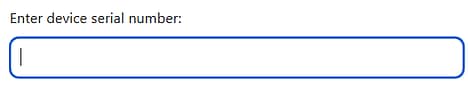
Enter serial number popup to register the device with the current account.
-
After clicking “Ok,” you should see the message “Activation successful!” and the device status will change to ACTIVATED.
You can also change the visibility of your design on this page. Activated devices can be transferred to other users, but only one user can be active at a time.
Changing device visibility, sharing your devices
By default, all designs are private, meaning they can only be seen, purchased, or modified by you. However, you can make your design public. Public designs can be searched, purchased, and cloned to workspaces by others to start with.
You can change the visibility only for the devices which are already produced, and linked to your account. Activated devices will have “ACTIVATED” status under the Status column.
To change the visibility of an activated device:
-
Hover over the Actions menu next to the device.
-
Choose the desired visibility option:
-
Private: The device will be completely hidden and cannot be cloned by anyone except you.
-
Public: Your device will appear in the Custom Controllers section of the shop, and others can search for and clone it.
-
Unlisted: The device won’t appear in search results or on the shop, but you can still share its product page for others to clone.
-
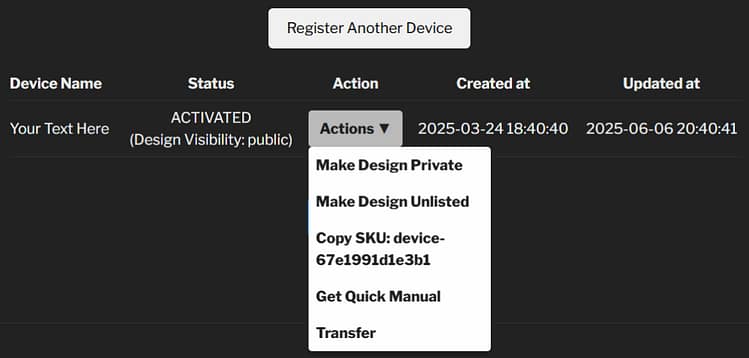
My MIDILLI Account: Actions menu hovered.
A public or unlisted design of a device can be cloned by following the link on the product page sent to you via email, or using the Menu… > Clone/Import Project option in the Factory and entering the device-sku.
You can also copy the device SKU to the clipboard to share it with anyone. They can only clone your design if it is public or unlisted.
Device Transfer
If you own a device and wish to transfer it to another user—user, whether it’it's a friend, another music lover, or for resale—resale, you can do so using the transfer feature in your account.
Important Notes:
-
Once transferred, the device will be deactivated for you, meaning you will no longer be able to use it in the Configurator unless you reactivate it.
-
Only one user can be active with the device at a time. Once transferred, the new user will take ownership and be able to register the device to their account.
-
The deactivated user will not receive any future firmware updates for that device.
How to Transfer a Device:
-
In the My Devices section, locate the device you want to transfer.
-
Open the Actions menu next to the device and select Transfer.
-
Follow the on-screen instructions to confirm the transfer.
-
Once confirmed, the device will be deactivated for you and will remain visible until the new user registers it with their account. The new user should follow Register Another Device steps to get the ownership.
This process allows for easy ownership transfers, whether you’re giving your device to someone else or reselling it.
Creating Your Own Device Manual
Each device is unique, so is your user manual. To create yours, hover over the Actions menu next to your device and select Create Manual.
Once the PDF is generated, the option will change to Get Quick Manual.