
Welcome Screen
Introduction
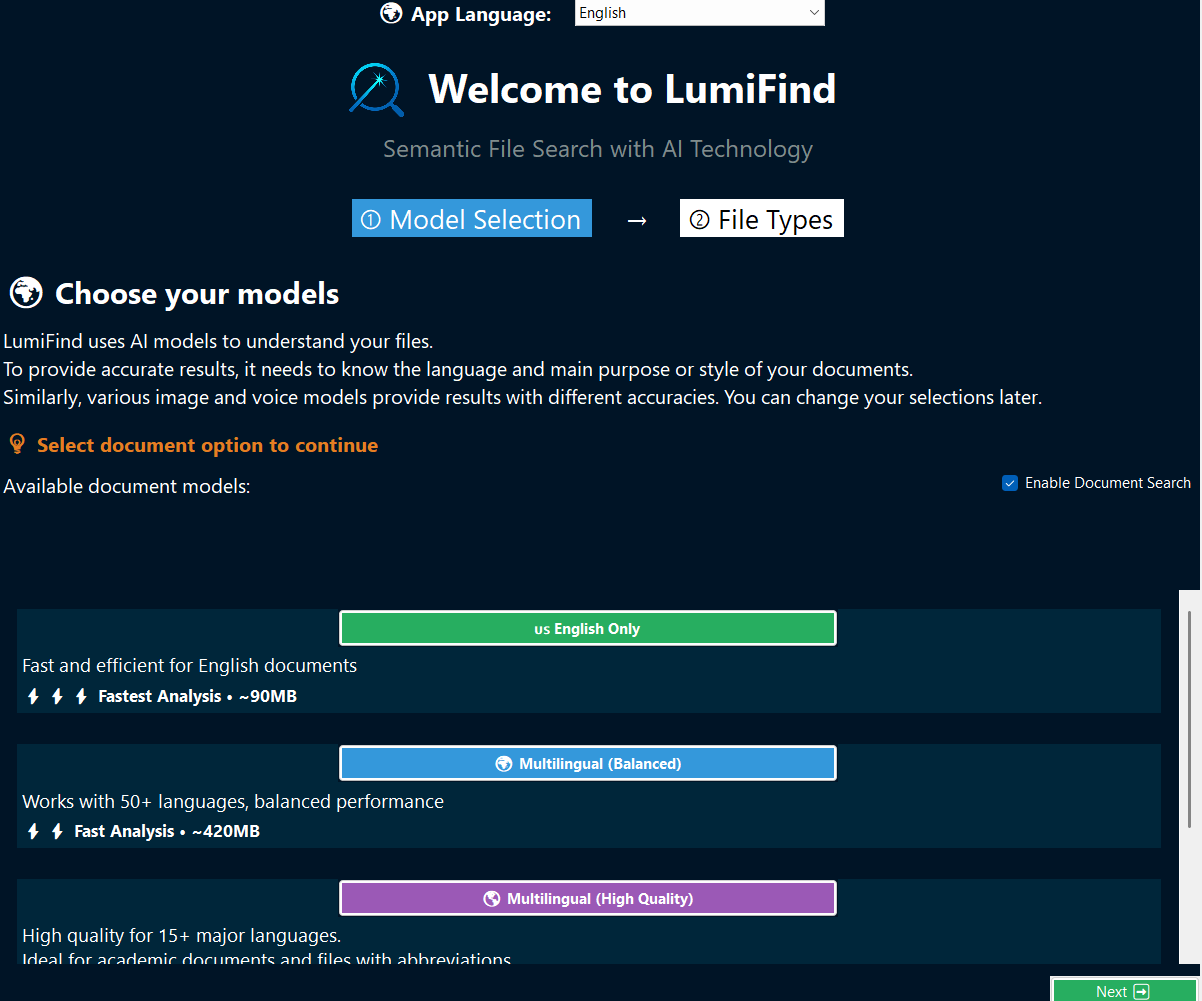
Welcome Screen guide you through the optimal settings if the LumiFind is running on this device for the first time.
 Document Edition
 Pro Edition
The language you pick here will be the default language for the LumiFind for the upcoming launches. However, you can change it later via Settings.
In two steps, you can start using LumiFind.
Step 1: Choosing Models
BasedDepending on your devicedevice’s specifications (CPU, RAM, available disk space etc.,)space) and the typetypes of thefiles files,you work with, you can choose fromany of the available models you like.models.
The wizard will enable the "Next" button ifonce all required models arehave been selected.
For example, if you areonly working onlywork with English documents, you can start with the smallest model for Document Search.Search model. If you,you however, mostlyfrequently search withinthrough documents withcontaining abbreviations,many abbreviations or academic papers,language, you canmight considerwant selectingto choose the model with this feature: Multilingual (High Quality). model instead.
TheYou can change your selected models can be changed later viain Settings."Settings", However,but afterkeep eachin change,mind the same type ofthat files must be analyzedreanalyzed again.whenever a model changes. For example,instance, if you changeswitch theto a different Image Model, all previous image analysisanalyses will need tomust be deleted and recreated.
Hint:Tip: You can startStart with a small set of files to find the perfectmodel modelthat works best for you. Each model ishas different,its and have theirown strengths and weaknesses.limitations.
If you want to use youra owncustom model, you can add it manually intothrough the settings file. This will be explainedcovered in the Advanced Use section.
TheModels selected models willonly need to be downloaded onlyonce. once,After andthat, these modelsthey will be loaded automatically each time LumiFind starts.
If you are not interested in onea particular type of analysis and search, e.g., if "Image Search" is not interestinganalysis, for you,example Image Search, you still need to chooseselect a model for it, but you can uncheckdisable theit by unchecking "Enable Image Search". buttonWhen todisabled, keepthe resource usage low. In this case, itmodel will not be loadeddownloaded or downloadedloaded, untilwhich ithelps isreduce enabledresource again via Settings.usage. This is aespecially good approachuseful for devices with lowlimited available resources.performance.
Step 2: Choosing File Types
LumiFind supports many file types and work with them tocan extract text or information.other information from them. However, eachenabling addedmore file formatformats will prolongincrease the analysis duration.time.
It is recommended to startbegin with the minimalminimum set of file types until you arebecome comfortablefamiliar with the tool. You can always add or remove file types later viain Settings.
Depending on your Edition, some set of file types will automaticallymay be selected.preselected automatically. You can read the informationdescriptions and the applicablecorresponding file extensions (formats) below theeach boxes.option. If you want those types to beinclude included,a youfile cantype, checkenable it using the " Enable" buttonswitch onin the top right. If you are not interested forin now,a particular type, or if it is not relevant atto all,your workflow, you can uncheckdisable theit "Enable"at button.any time.

The " Others" section is a freefree-form field towhere typeyou thecan enter additional file extensions youthat believeLumiFind aredoes readable,not list by default but notcan providedstill by the LumiFind.read. For example, if you would likewant to search inthrough theyour program’s source code of your program,code, you can type the formatsextensions separated by commacommas e.g.,such as .cpp, .c, .h, .hpp. in this field. PressSelect "Enable" to include these formats. You can also add readable formats as well. If a file is still readable, but not available, e.g.,like Markdown files (.md, .markdown,) you can also append these next toin the othersame formats.way.
Warning: If you add e.g., a non-format that is not readable fileas intoplain this field,text, LumiFind will trystill attempt to extract the textcontent from it. However, itThis may take longer time and giveproduce badpoor results. SimplyTo avoid issues, simply open the formatfile withtype in a text editor first to makeverify surethat it is readable.
If you enable "Compressed Files", LumiFind will extract thesethe filesarchive and trylook to find thefor documents inside.inside it. Since image, voice,audio, and video compression ratesis arealready toovery low,high, compressed files are only will be considered during document analysis.
IfOnce you are happysatisfied with your selections, pressclick "Start Using LumiFind". If you want to go backreturn to the Step 1, use the "Back" button onin the bottomlower left.