
Welcome Screen
Introduction
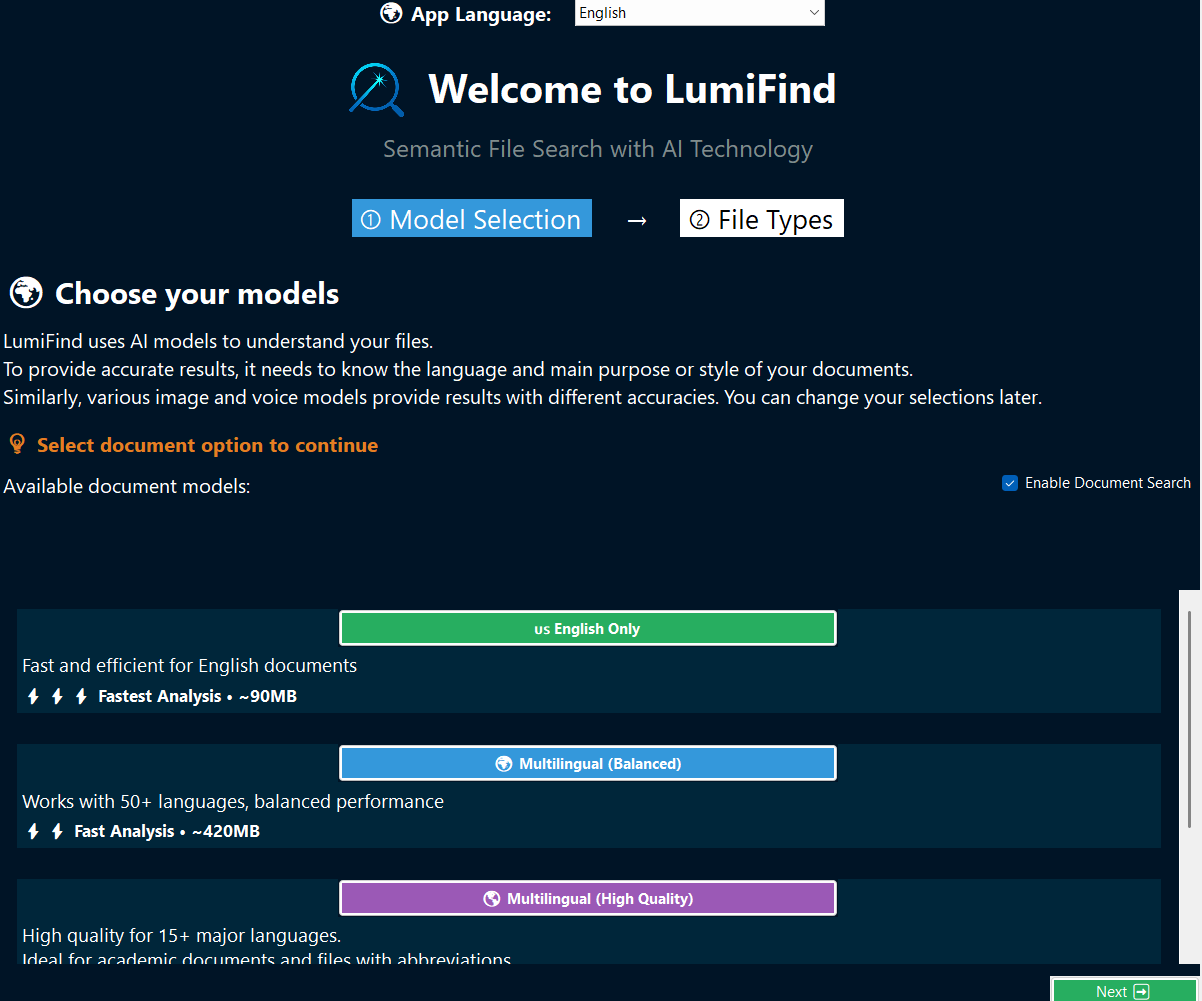
Welcome Screen guide you through the optimal settings if the LumiFind is running on this device for the first time.
 Document Edition
 Pro Edition
The language you pick here will be the default language for the LumiFind for the upcoming launches. However, you can change it later via Settings.
In two steps, you can start using LumiFind.
Step 1: Choosing Models
Based on your device specifications (CPU, RAM, available disk space etc.,) and the type of the files, you can choose from the available models you like.
The wizard will enable the "Next" button if all required models are selected.
For example, if you are working only with English documents, you can start with the smallest model for Document Search. If you, however, mostly search within documents with abbreviations, or academic papers, you can consider selecting the model with this feature: Multilingual (High Quality).
The models can be changed later via Settings. However, after each change, the same type of files must be analyzed again. For example, if you change the Image Model, all image analysis will need to be deleted and recreated.
Hint: You can start with a small set of files to find the perfect model for you. Each model is different, and have their strengths and weaknesses.
If you want to use your own model, you can add it manually into the settings file. This will be explained in Advanced Use section.
The selected models will need to be downloaded only once, and these models will be loaded each time LumiFind starts.
If you are not interested in one type of analysis and search, e.g., if "Image Search" is not interesting for you, you still need to choose a model for it, but you can uncheck the "Enable Image Search" button to keep resource usage low. In this case, it will not be loaded or downloaded until it is enabled again via Settings. This is a good approach for devices with low available resources.
Step 2: Choosing File Types
LumiFind supports many file types and work with them to extract text or information. However, each added file format will prolong the analysis duration.
It is recommended to start with the minimal set of file types until you are comfortable with the tool. You can add or remove file types later via Settings.
Depending on your Edition, some set of file types will automatically be selected. You can read the information and the applicable file extensions (formats) below the boxes. If you want those types to be included, you can check the "Enable" button on the top right. If you are not interested for now, or not relevant at all, you can uncheck the "Enable" button.

The "Others" section is a free field to type the extensions you believe are readable, but not provided by the LumiFind. For example, if you would like to search in the source code of your program, you can type the formats separated by comma e.g., .cpp, .c, .h, .hpp in this field. Press "Enable" to include these formats as well. If a file is still readable, but not available, e.g., Markdown files .md, .markdown, you can also append these next to the other formats.
Warning: If you add e.g., a non-readable file into this field, LumiFind will try to extract the text from it. However, it may take longer time and give bad results. Simply open the format with a text editor to make sure it is readable.
If you enable "Compressed Files", LumiFind will extract these files and try to find the documents inside. Since image, voice, and video compression rates are too low, compressed files only will be considered during document analysis.
If you are happy with your selections, press "Start Using LumiFind". If you want to go back to the Step 1, use the "Back" button on the bottom left.