
Quick Usage
Excited to use LumiFind? We are also excited to tell more about it. However, as the page intends, we will not go into details here.
To start using it, we need to follow four steps:
- Registration
- Quick Settings with Welcome Screen
- Analysis
- Search
Registration
LumiFind requires you have a valid license to use it. Upon first start, you will need to enter your registration information. This info will be sent you via email. You can select the language you prefer for this process.

Simply click "Register" button.

The dialog will let you enter the registration key and the email address attached with the key.
If it is the first time activation of the license, the key must exactly match the email that was used for the purchase.
No internet access? Click here.
If your computer does not have an internet access, or behind a proxy, you can select "Activate Offline" button. In that case you will be given a device code, and this needs to be entered on https://lumifind.midilli.tech/activate. It will also be copied to your clipboard so that you do not need to memorize it.

We assume you have an internet connection. Enter the information and press "Activate". If activation is successful, you will get a message and the "Welcome Screen" will be shown.

If you encounter any issues, you can press the "Collect Support Information" button to copy some data for us to review, and send this information to us by pasting it into your email client.
Welcome Screen
LumiFind will be ready in three easy steps. This screen will guide through the minimal and optimal settings for your device. Here you can also pick a language which will be default for the application itself.
In the first step, you need to select your models. Depending on your hardware and your files, pick appropriate one(s) and select "Next". You can change later. We recommend you start with the smallest ones since they require one-time download. If you e.g., do not need image search or voice model for now, you can deactivate by unchecking "Enable ... Search" buttons above. However, a model must be chosen. If a search is not active, its model will not be downloaded.

Depending on your license, you will see only the applicable models available for you. E.g., if you own Document Edition, you will not be able to select image or voice/video models.
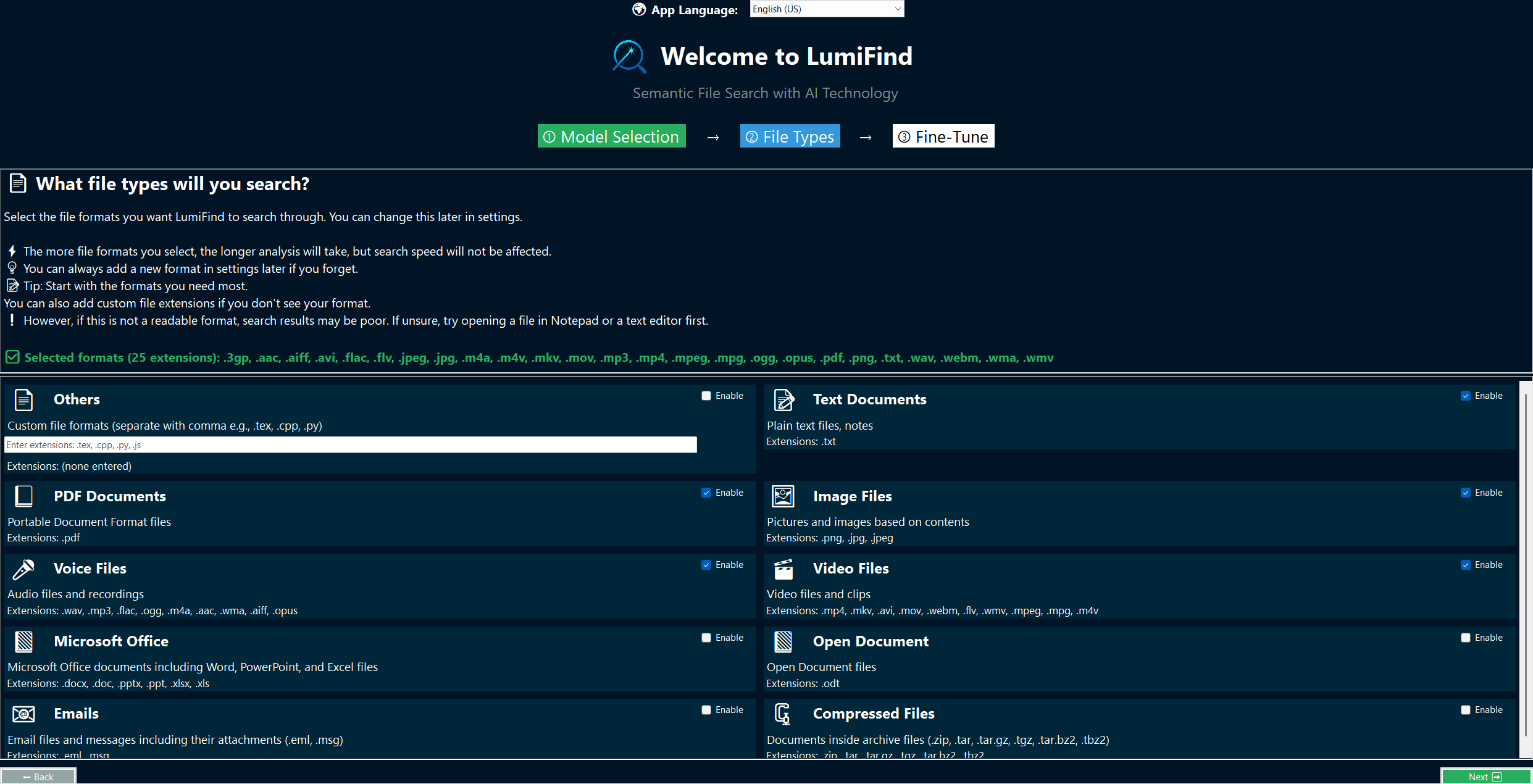
In the second step, you need to select the types you are interested in. You can add/remove types later. We recommend that you start with the minimal set of file types to get used to the tool. You can also add custom extensions which will be treated as documents (such as source code formats). Once you are fine with settings, select "Next" for the final step to review fine-tune settings.

In the final step, you can review and adjust optional fine-tuning settings to personalize your LumiFind experience.
All of these options, along with additional configuration controls, are always accessible later via Settings, so you can change them anytime.
You may customize the settings now or keep the default configuration.
When ready, click "Start Using LumiFind" to complete the setup.
Analysis Mode

After settings are saved, LumiFind will start its main interface in Analysis Mode. It may require some time to download all necessary model files and load these files. Please be patient. The status can be seen in the Logs. If you did not activate some of the models in the Welcome Wizard, they will not be downloaded.
Here, you need to select some folders to analyze.
You can select "Browse" button, type the direct path, or use the tree view below to navigate. Once you are happy with the directory, press "Include 'Folder Name' in Analysis" button. Only then LumiFind will be able to see its contents. You can also individually add your file(s) scattered around you computer by using "Add individual file(s)". If you would like to exclude a folder located under an included folder, you can do so by browsing it and pressing "Exclude 'Folder Name' from Analysis" button.
You can also include a remote folder (e.g., NAS) if they are also accessible from your computer. You can add as many as you like.
You are not happy with one folder? Then select it under Included Folders list and press "Remove Selected from List".
If "Start Analysis" button is pressable, it means you are ready to go. Click and wait. To see what LumiFind is doing in detail, press Toggle Logs to open the log panel:

Search Mode
After analysis is complete, switch to "Search Mode" by pressing the green button in the middle, the blue button on the top right, or the F3 key.

Here you can directly type what you are looking for or select any kind of file from the supported types, select the search type and start searching. Depending on the chosen model, the document, voice, and video searches can also be performed in multiple languages.
You can also select a file and also add some keywords to narrow down your search.
You can click the "Filters..." button to narrow down your search.

For example, if you know the image you are looking for is not a PNG file, you can simply uncheck the PNG format.
Likewise, if you are searching only by file name, you can set the "Detail Level" to "Only Metadata".
You can also Press Ctrl + E (Windows, Linux) or Cmd + E (macOS) to switch to Search Mode and focus search input directly. Alternatively, you use Ctrl/Cmd + 1..5 to switch to this mode, set the search type and focus on the search field.

You should be seeing the results instantly. If the result is an image, selecting once shows a thumbnail on the bottom right (if enabled in Settings).

Double-clicking on a result will open the file. You can also toggle its preview by using "Preview" button, or locate it in the file browser by using "Reveal in File Manager" button. Using "Show Related Files" button, you can display other similar files, semantically similar to the selected file.
Your search queries will be saved into the search history on the right. You can double-click on one to repeat the search, delete the selected one, or clear all.
If you want to change LumiFind settings, press "Settings" button on the top right.
This was the basics. Please see other sections to learn more about the tool.