
License Manager
LumiFind requires an active license to be used. The "LumiFind License Manager" is the tool to set up your license on your devices. At the first startup, you will be provided with the following screen:

You can select the language to be used throughout the activation.
The License Manager needs an active internet connection for the activation and or release of the license.
If you are having difficulties while registration, you can press "Collect Support Information" button. This will copy the required information into your clipboard to assist you. This will have no confidential information about your files, but mandatory parameters and their values. Please send this information along with the problem description to our contact email address.
Registration
Press "Register" to open the window to enter the registration info.

Online Activation
Enter the "Registration Key" and the "Email" and press "Activate".
If it is the first time activation of the license, the key must exactly match the email that was used for the purchase.
After matching information, you will be seeing the success message and the Welcome Screen will start, if it is first time running on this device.
Offline Activation
If you are in a company and behind a proxy, or if the device does not have an active internet connection, you can press "Activate Offline" button. This will create a unique device code that needs to be used for the activation using another device.

It will also be copied to your clipboard. Save it or note it down and open https://lumifind.midilli.tech/activate on the other device which has an internet connection.
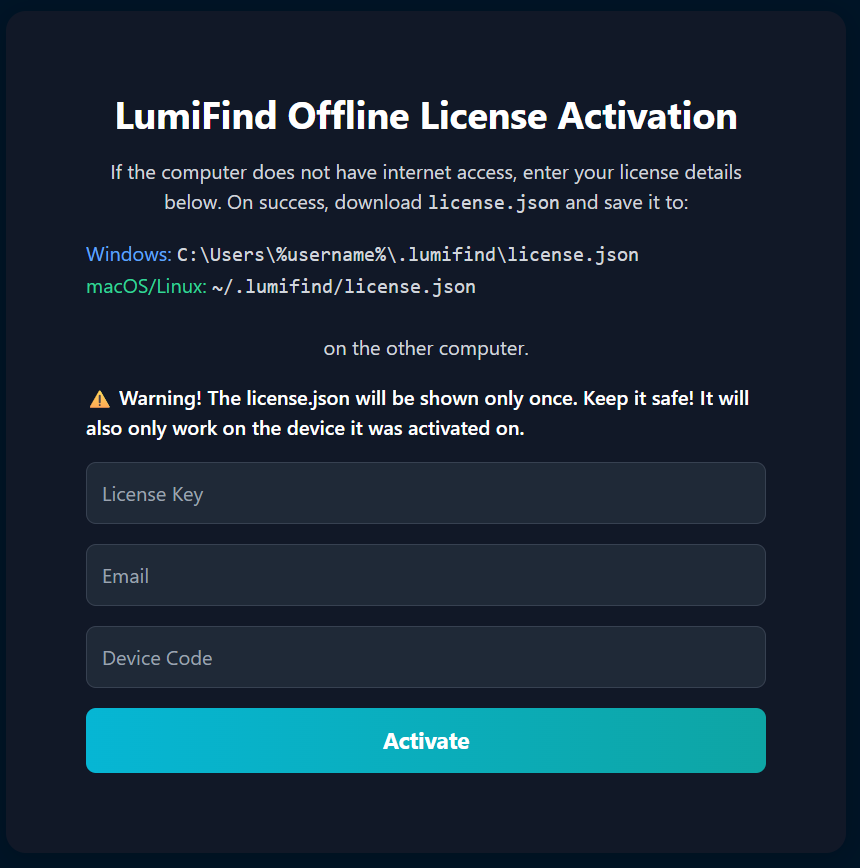
Enter the registration information in the respective fields and press "Activate". If everything is correct, you will be given a link to download your license file.
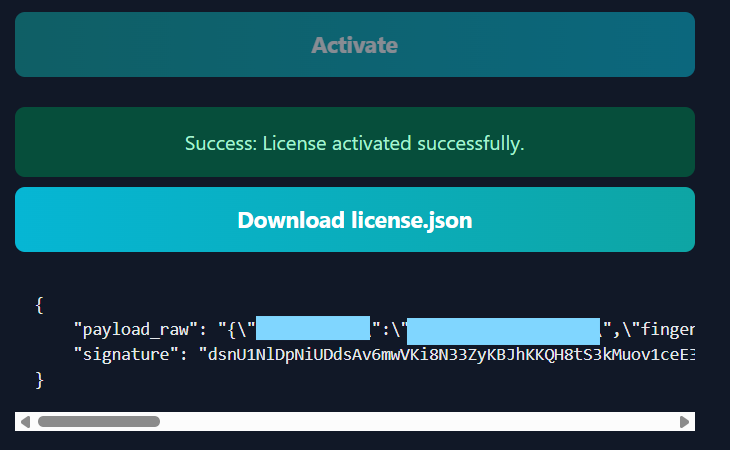
You can either download the license.json file and transfer it to the device where LumiFind is installed, or copy the content below and create the file manually.
Then place it:
on Windows: C:\Users\%username\.lumifind\license.json
on macOS/Linux: ~/.lumifind/license.json
Note: The file must exactly have the name license.json or the license will not be found.
If you closed the license window, restart LumiFind, otherwise click "OK" to close the window with device code and the License Manager. Then, Welcome Wizard should start.
Viewing License Information
The License Manager can be used to view the current license information, such as the available features and the expiration date if exists. It can be opened by using Help -> LumiFind License Manager.

If you have an active license, you can also release it to transfer to your other devices.
When requested, or to get support, you can press "Collect Support Information" button. This will copy the required information into your clipboard to assist you. This will have no confidential information about your files, but mandatory parameters and their values. Please send this information along with the problem description to our contact email address.
Releasing License
If you have changed your device and want to transfer your license to another device, you can release the license. Open the License Manager by going to Help -> LumiFind License Manager.
An active internet connection is required to release a license. It is not possible to deactivate a license offline, as LumiFind does not actively check license validity.
Once a license is released, it can be registered using any email; it does not have to be the same email used during the initial activation.