# Quick Usage

### Introduction

Download the ZIP file and extract to a location. Copy the *Example JSON file* below and save it as *test.json* using a simple text editor. To keep the things simple, save it at the same location as the executable.

To create your own JSON file, use our online [visual box designer](https://midilli.tech/visual-box-designer/) or [JSON Creator](https://midilli.tech/midilli-tools-json-creator/) or refer to [MIDILLI JSON Definition](https://midilli.tech/help-and-support/manuals/manuals-free-tools/midilli-json-file-definition/) document to create your own from scratch.

### Example JSON file

The following file generates all six sides for *MyPart*, placing one hole and one rectangle cutout on the *Top* side. The top size of the box is 5x5 cm and the components are placed at (x = 1, y = 1) and (x = 3, y = 3) respectively. The visible sizes of the components are the same as drill sizes.

```
{
	"Generic": {
		"width": 5.0,
		"length": 5.0
	},
	"MyPart_Top": {
		"myRoundComponent#1": {
			"location_x": 1,
			"location_y": 1,
			"drill_diameter": 1,
			"call_name": "Hello",
            "visible_diameter": 1,
			"rotation": 0
		},
		"myRectangleComponent#1": {
			"location_x": 3,
			"location_y": 3,
			"drill_width": 2,
			"drill_length": 1,
			"call_name": "MIDILLI",
			"visible_width" : 2,
			"visible_length" : 1,
			"rotation": 0
		}
	},
	"MyPart_Bottom": {

	},
	"MyPart_Back": {
		
	},
	"MyPart_Front": {

	},
	"MyPart_Left": {

	},
	"MyPart_Right": {

	}
}
```

Depending on the command-line options, the other sides of the part will be created using different sizing. Read *Coordinate system* *and effect of sizing parameters* for more on different results of the arguments.

<p class="callout info">**Note**: JSON syntax is very strict. Ensure that the last line before each '}' does **not** end with a comma, while all other lines **should**. Use an online validation tool to confirm correctness.  
</p>

<p class="callout info">**Note**: Use dot (.) if working with decimal numbers to separate the integer part.</p>

### Command line

Assuming that the JSON file is stored at the same location as the executable file, open a command window (Command Prompt, or PowerShell), then execute the following command:

**Note: The following command requires installation of the free and open-source [OpenSCAD](https://openscad.org/downloads.html) software.**

```
.\STLGenerator.exe --json-file .\test.json --output-directory .
 --material-thickness 3 --box-height-3d 30 --single-part --separate-top
```

You will be provided with an output showing the current settings as following:

```
~~~~~ Settings ~~~~~
Single part: Yes
Separate top: Yes
Separate bottom: No
Separate back: No
Separate front: No
Separate left: No
Separate right: No
Screw diameter: 0 mm
Screw head height: 0 mm
Screw head diameter: 0 mm
Screw extra margin: 0 mm
Outer sizing enabled: No (from JSON)
Finger joints: No
Finger size: 3 mm (default: material thickness)
Finger count: Automatic
Finger clearance: 0 mm
Outer sizing enabled: No
Material thickness: 3 mm
Box height in 3D: 30 mm
Recess depth: 0 mm
Draw text: Yes
Font size: 8 px
Text depth: 1 mm
OpenSCAD path: C:\\Progra~1\\OpenSCAD\\openscad.exe
Keep OpenSCAD files at the end: No
Create only OpenSCAD files: No
Verbose enabled: No
```

Each setting on the console output can be customized with command line arguments.

**Note**: Use dot (.) if working with decimal numbers to separate the integer part.

After completion, 6 files starting with *MyPart\_* and ending with *.stl*, *test\_merged.stl*, and *MyPart\_Top.scad* file will be visible under *test* directory. Opening *MyPart\_Top.stl* and *test\_merged.stl* in a program which can view STL files should display results similar to the following:

[![image.png](https://docs.midilli.tech/uploads/images/gallery/2025-12/scaled-1680-/image.png)](https://docs.midilli.tech/uploads/images/gallery/2025-12/image.png)  
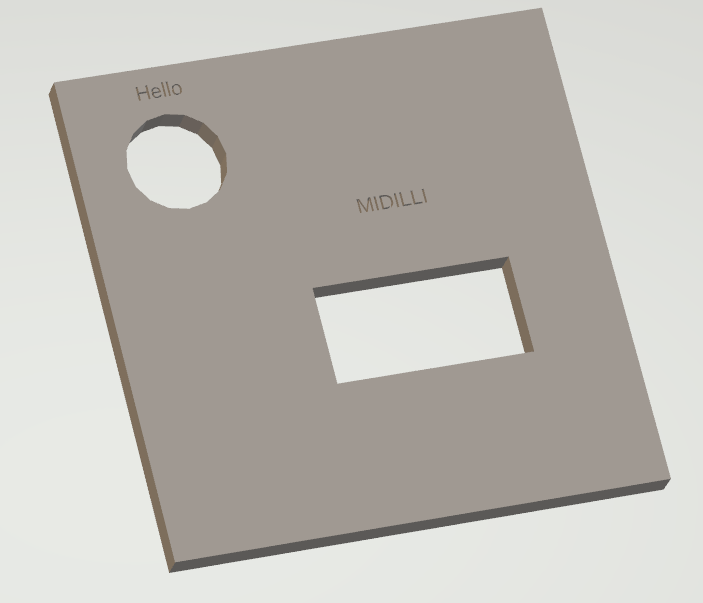
MyPart\_Top.stl: Separated top with components of the example project.

<div class="wp-block-columns are-vertically-aligned-top" id="bkmrk-test_merged.stl%3A-res"><div class="wp-block-column is-vertically-aligned-top">  
</div> <div class="wp-block-column is-vertically-aligned-top"> ![](https://midilli.tech/wp-content/uploads/2025/01/test-stl-separated-top-singlepart.png)  
test_merged.stl: Rest of the sides are combined as a single part.</div></div>From this point, you can use your slicer software to start printing.

<details id="bkmrk-hint-tip%3A-if-you-wan"><summary>Hint</summary>

Tip: If you want the overall size to be exactly as you specify in the JSON file, use the --outer-sizing option. If you want the usable inner area to be the same as you define, leave it as default.

</details>