# Using GPU instead of CPU
For Enterprise users, GPU support with fallback to CPU comes with the deployment. Home users can also enable it, but must use the console version of LumiFind.
Here are the steps:
1. Download the Advanced version packaged for your operating system (as ZIP).
2. Unzip somewhere on your computer.
3. Make sure you have Python and PIP installed ([https://pip.pypa.io/en/stable/installation/#ensurepip](https://pip.pypa.io/en/stable/installation/#ensurepip))
4. Then on that folder open a command window, navigate to that folder and run:
`pip install torch torchvision --index-url https://download.pytorch.org/whl/cu126`
Tip: On Windows, you can right click on the navigation bar of the Explorer, and press Edit Address, then type `powershell` to quickly open terminal in this folder.
5. Then run:
`pip install -r requirements.txt`
6. Finally start LumiFind with:
`python -m lf --console`
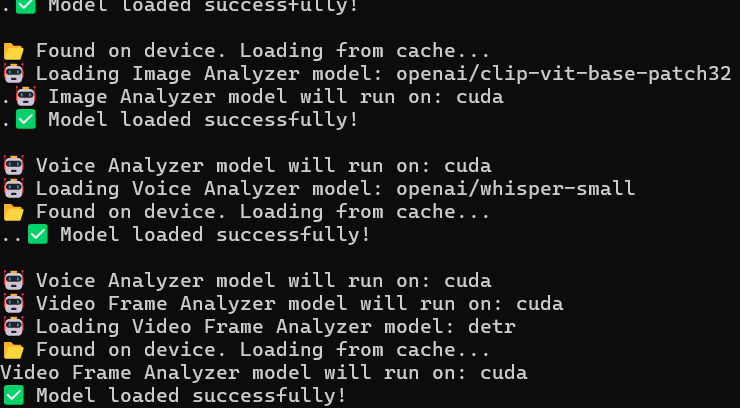
You should then see that the application will run on CUDA similar to below:
[](https://docs.midilli.tech/uploads/images/gallery/2026-07/image.png)