# Main Window
## Introduction
The Main Window is the primary interface where you will spend most of your time.
[](https://docs.midilli.tech/uploads/images/gallery/2026-01/analysis-mode-1-2-0-windows.png)
It contains two sections: **Analysis Mode** and **Search Mode**.
- **Analysis Mode** allows you to select the folders that LumiFind will scan and analyze. You can use `F2` on the keyboard as shortcut to switch to this mode.
- **Search Mode** becomes available once you have completed at least one analysis. It enables you to search through your data quickly and intelligently. `F3` key is the shortcut to switch to this mode.
## Analysis Mode
This mode scans the allowed folders and individually tracked files and creates an index of the selected file formats using the active models configured in the [Welcome Wizard](https://docs.midilli.tech/books/lumifind-user-guide/page/welcome-screen "Welcome Screen") or [Settings](https://docs.midilli.tech/books/lumifind-user-guide/page/settings "Settings"). To use the search functionality, you must complete at least one analysis with an analyzer.
You can also activate this view by using *View -> Analysis Mode* or pressing `F2`.
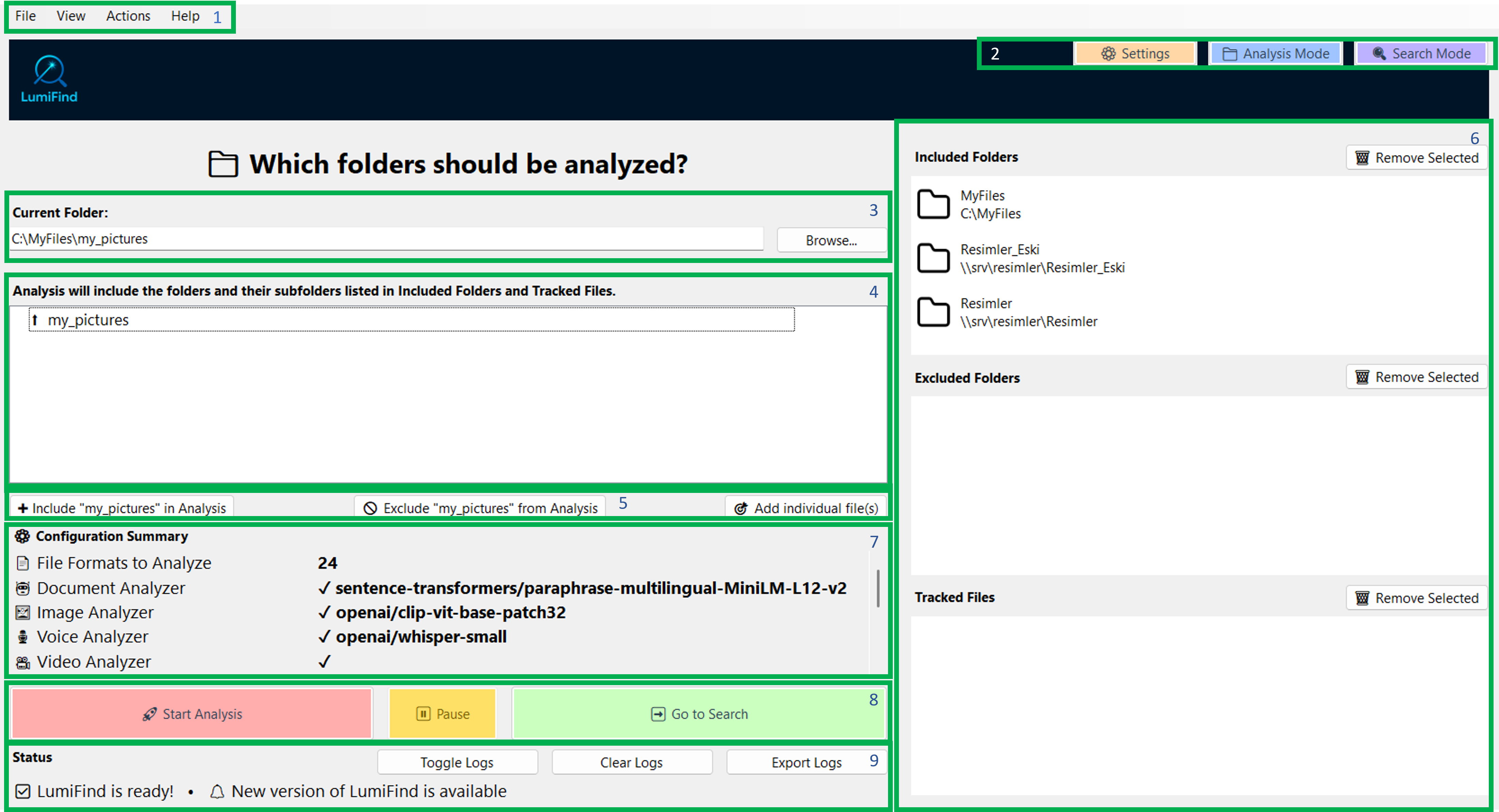
Analysis Mode will have the following layout:
[](https://docs.midilli.tech/uploads/images/gallery/2026-01/analysis-mode-overlay-1-1-0-windows.png)
Refer to the image above and the numbered areas. Each section is explained below.
1. *File*, *View*, and *Help* menus.
- File: *Create Backup* opens a dialog to back the analysis data up as described here. *Settings* opens the [settings](https://docs.midilli.tech/books/lumifind-user-guide/page/settings "Settings Window") window and *Exit* quits the program.
- View: Displays options to switch between *Analysis* and *Search* mode.
- Actions: Lists quick shortcuts to switch to Search mode and focus on search field, including changing the search type.
- Help: This menu lets you open the LumiFind website, access the online documentation (Shortcut: `F1`), check for software updates, and open both the [License Manager](https://docs.midilli.tech/books/lumifind-user-guide/page/license-manager "License Manager") and the About window.
2. [Settings](https://docs.midilli.tech/books/lumifind-user-guide/page/settings "Settings Window") and mode selection buttons. The Settings button becomes available once LumiFind is ready. You can also use `Ctrl + ,` on Windows/Linux and `Cmd + ,` on macOS to open it.
3. The currently viewed folder, along with a "Browse" button for quick navigation. It is also possible to paste a path and press `Enter`.
4. Subfolders within the currently viewed directory.
5. Buttons to add a folder in a list in item 6, or to remove it from that list.
6. **Included Folders:** The list of folders that LumiFind will analyze.
**Excluded Folders:** Folders that LumiFind will not crawl into.
**Tracked Files:** Individual files to analyze and track for changes.
7. A summary of the current settings which are going to be used when analysis starts.
8. Buttons to "Start" or "Stop" the analysis, and a button to switch to "Search" mode.
9. The **Status** panel, which shows information about ongoing actions. You can toggle log visibility with "Toggle Logs", clear them with "Clear Logs", or export to a file by pressing "Export Logs" button. You can also automatically export logs for each session if you enable [Settings](https://docs.midilli.tech/books/lumifind-user-guide/page/settings "Settings Window") -> [Analysis Settings](https://docs.midilli.tech/books/lumifind-user-guide/page/settings#bkmrk-analysis-settings) -> [Auto Save Logs to File](https://docs.midilli.tech/books/lumifind-user-guide/page/settings#bkmrk-auto-save-logs-to-fi).
Depending on the models you have chosen in the [Welcome Wizard](https://docs.midilli.tech/books/lumifind-user-guide/page/welcome-screen "Welcome Screen") or in the [Settings](https://docs.midilli.tech/books/lumifind-user-guide/page/settings "Settings Window") window, and their enabled statuses, LumiFind will load them. This may take some time, but it happens only once at each startup. The "Start Analysis" button will be enabled when everything is ready, and a "LumiFind is ready!" message will appear in the Logs (8).
If this is your first time starting, you will need to select some folders via (3) or (4) and include them into (6) to start analysis. Alternatively, use "Add individual file(s)" button to select one or more files to analyze and track the changes. On Windows and Linux, you can use `Ctrl + Left-click` to select multiple files at once. On macOS, use `Cmd + Left-click`.
If you want to exclude a folder, browse via (3) or (4) and press "Exclude '<Folder Name Here>' from Analysis" button.
During analysis, Tracked Files will have precedence, then the Excluded Folders and finally the Included Folders. This means, if you have an individually tracked file and it is inside an excluded folder, this file will be analyzed. Similarly, if you included a folder, but excluded its one of sub-folders, those sub-folders will not be crawled hence the files inside will not be analyzed.
**LumiFind can only access folders and files that you allow it to see.**
You can change the current folder by selecting one in the tree view below (6) or by pressing the "Browse..." button. Once you are happy with a folder, press "Include '<Folder Name Here>' in Analysis" (5). To remove a folder, select it from a list and press "Remove Selected" above the list (5).
You can also include remote folders. On Windows, they start with `\\`. In that case, the include button will indicate that it is a remote folder. On macOS and Linux, remote folders are only possible if they are mounted and accessible via Finder or a file browser (e.g., Nautilus, Dolphin).
Similarly, if you want to include Cloud storage folders such as Dropbox, Google Drive, or OneDrive, simply browse to them and include them in the analysis.
Once you have included all the folders or files you need, press the "Start Analysis" button and grab some coffee (or water, or anything you like).
LumiFind now uses checkpoint system. Progress is saved periodically during analysis. If you stop the process using "Stop Analysis" or an unexpected interruption occurs, analysis can resume from the last checkpoint instead of starting over.
If you would like to temporarily pause the analysis to resume later, you can press "Pause" button. Once you decide to continue analysis, you can use the "Resume" button.
If you completed at least one analysis, then, on future launches, LumiFind will automatically switch to Search Mode to save an extra click.
**Hint**: To get familiar with the tool, it is recommended to start with a small set of folders and file types. This makes it easier to switch between models until you find the one that works best for you.
## Search Mode
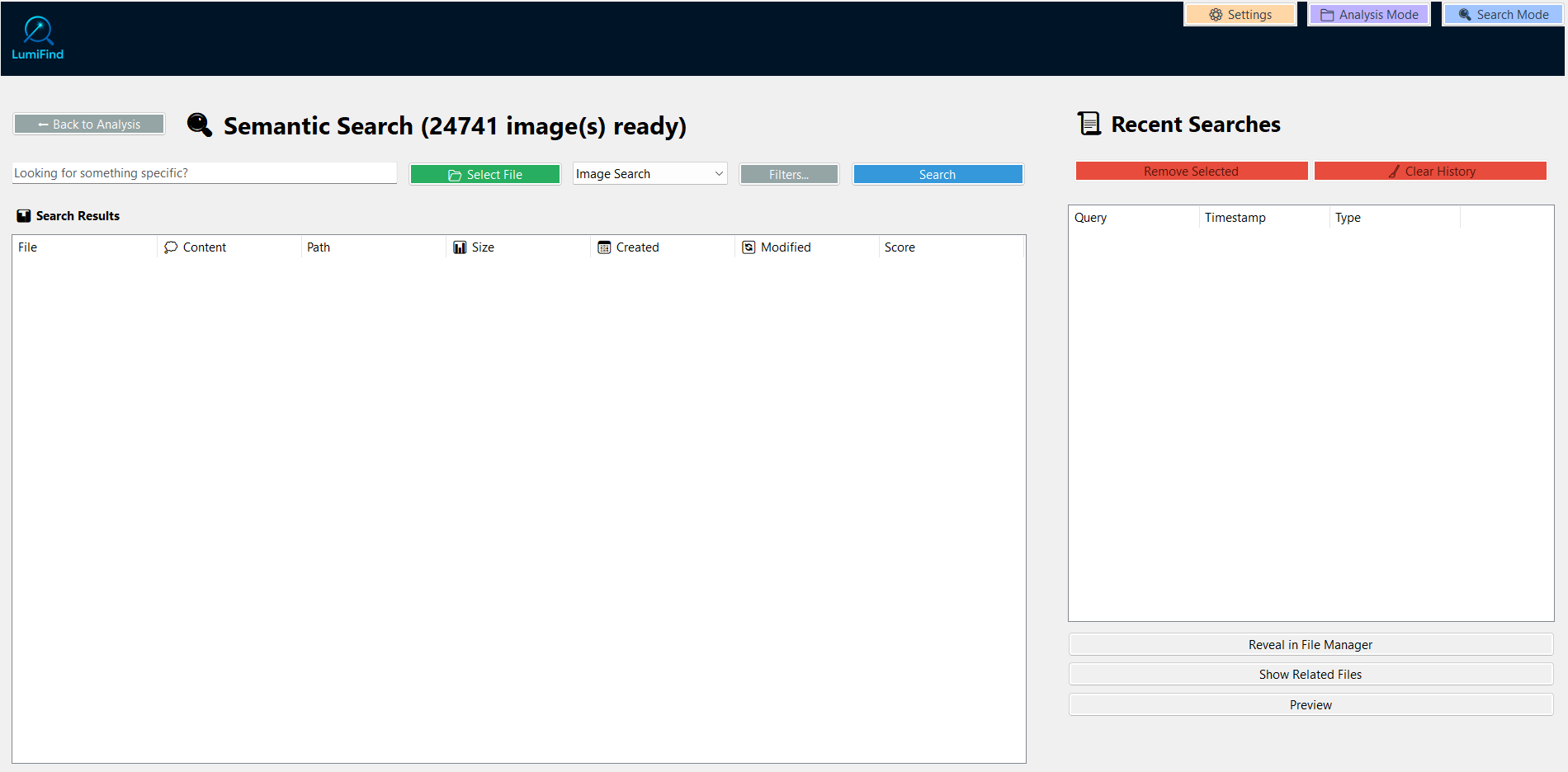
This mode requires that you have at least one model enabled (via [Welcome Wizard](https://docs.midilli.tech/books/lumifind-user-guide/page/welcome-screen "Welcome Screen"), or [Settings](https://docs.midilli.tech/books/lumifind-user-guide/page/settings "Settings Window")) and performed at least one analysis. You can also activate this view by pressing `F3`. If you want to activate this view and directly focus on search input, press `Ctrl + E` (Windows, Linux) or `Cmd + E` (macOS). You can also use `Ctrl/Cmd + 1..5` to switch to this mode and set the search type, then focus on the search file in one key combination.
[](https://docs.midilli.tech/uploads/images/gallery/2026-07/semantic-search-empty-1-5-0-windows.png)
Upon the next launches, this mode will open by default, making your searches one click faster.
[](https://docs.midilli.tech/uploads/images/gallery/2025-11/search-mode-loading-0-9-0-windows.png)
After LumiFind is ready, type the query you want to search for and select the type of search. Depending on your edition and the active models, only the available options will be shown. You can choose from the following options:
- Document Search
- Image Search
- Voice Search
- Video Audio Search
- Video Frame Search
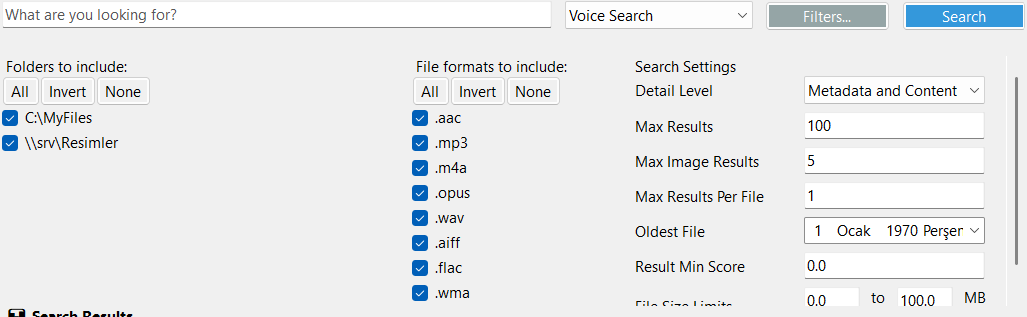
Before running a search, you can refine the scope using the "Filters..." button.
### Using Filters
Here you can:
- Include or exclude specific folders
- Include or exclude file formats for the active search type
- Adjust path-related options
- Apply search-related settings directly within Search Mode
[](https://docs.midilli.tech/uploads/images/gallery/2025-11/windows-search-mode-filters-on-0-84.png)
Changes in the filter section are stored. This means you do not have to change them each time. However, folder selection applies only to the current search. Below each setting is explained:
#### Detail Level
Specifies the depth of search for files.
- **Metadata and Content (default):** Searches both metadata (e.g., file name, creation date, or other file properties not related to the actual content, similar to the operating system's search) and the file content itself using the selected model. Metadata mode will also search within the [EXIF](https://en.wikipedia.org/wiki/Exif) data of an image if exists, such as GPS coordinates and camera. So searching for a country or city may also give results.
- **Metadata Only:** Searches only the file's metadata without considering the content, only file name, the path, and EXIF data are considered.
- **Content Only:** Focuses solely on the file content, leveraging the model for deeper and more intelligent search results. Metadata will be ignored. For example, if a file is named `abc.txt` and you search for "abc", the file will only be found if the term "abc" or semantically related content exists within the document. If not, it will not appear in the search results. Similarly, a partial path name can also be searched if you are actually looking for a folder.
#### Max Results
Defines the maximum number of results that can be displayed in the result window. Increase it if the results are not satisfactory. Default: 100
#### Max Image Results (Pro Edition)
Determines how many top-matching images will be displayed for each image search query. Default: 10
#### Max Results Per File
Sets the maximum number of search results shown per individual file. For example, if a document is identified as an 'invoice' across multiple pages, this setting controls how many times it will appear in the results. Default: 1.
#### Oldest File
Specifies the oldest file to include in search results. This setting affects search only, not indexing.
For example, if you indexed files from the last 5 years but want to see results only from this year, select a date using the date picker.
On Linux, the date must be entered manually in YYYY-MM-DD format. Default: 1970-01-01.
See [Analysis Settings](#bkmrk-analysis-settings) -> [Oldest File](#bkmrk-oldest-file-1) for specifying date for analyses.
#### Result Min Score
Specifies the minimum relevance score a document, voice, video audio, and video frames must have to appear in search results. Lower scores may include less relevant results and higher scores may end up not showing any files at all. Default: 0
#### File Size Limits
Sets the minimum and maximum file sizes that LumiFind will display in the search results. Files outside this range will be ignored. Default is between 0 and 100 MB.
After adjusting filters, click "Search" to run the query with your selected configuration, or press `Enter`.
### Performing Search
After starting the search, results will appear within seconds if matches are found. For Document, Voice, or Video Audio results, the Content area displays the relevant text. If it is not clearly visible, you can resize the columns by dragging their borders.
For the image results, no content is displayed in the Content area. Instead, selecting an image result once will show a thumbnail in the bottom right of the window if thumbnail generation is enabled in the [Settings](https://docs.midilli.tech/books/lumifind-user-guide/page/settings "Settings Window") -> [Analysis Settings](https://docs.midilli.tech/books/lumifind-user-guide/page/settings#bkmrk-analysis-settings) -> [Enable Thumbnail Generation](https://docs.midilli.tech/books/lumifind-user-guide/page/settings#bkmrk-enable-thumbnail-gen) during analysis and the [Visual Settings](https://docs.midilli.tech/books/lumifind-user-guide/page/settings#bkmrk-visual-settings) -> [Display Thumbnails in Search Results](https://docs.midilli.tech/books/lumifind-user-guide/page/settings#bkmrk-determines-the-unit-) is set to Yes. Depending on the settings and availability, either "Thumbnail" or "Original" message will be shown above the image to indicate its source.
[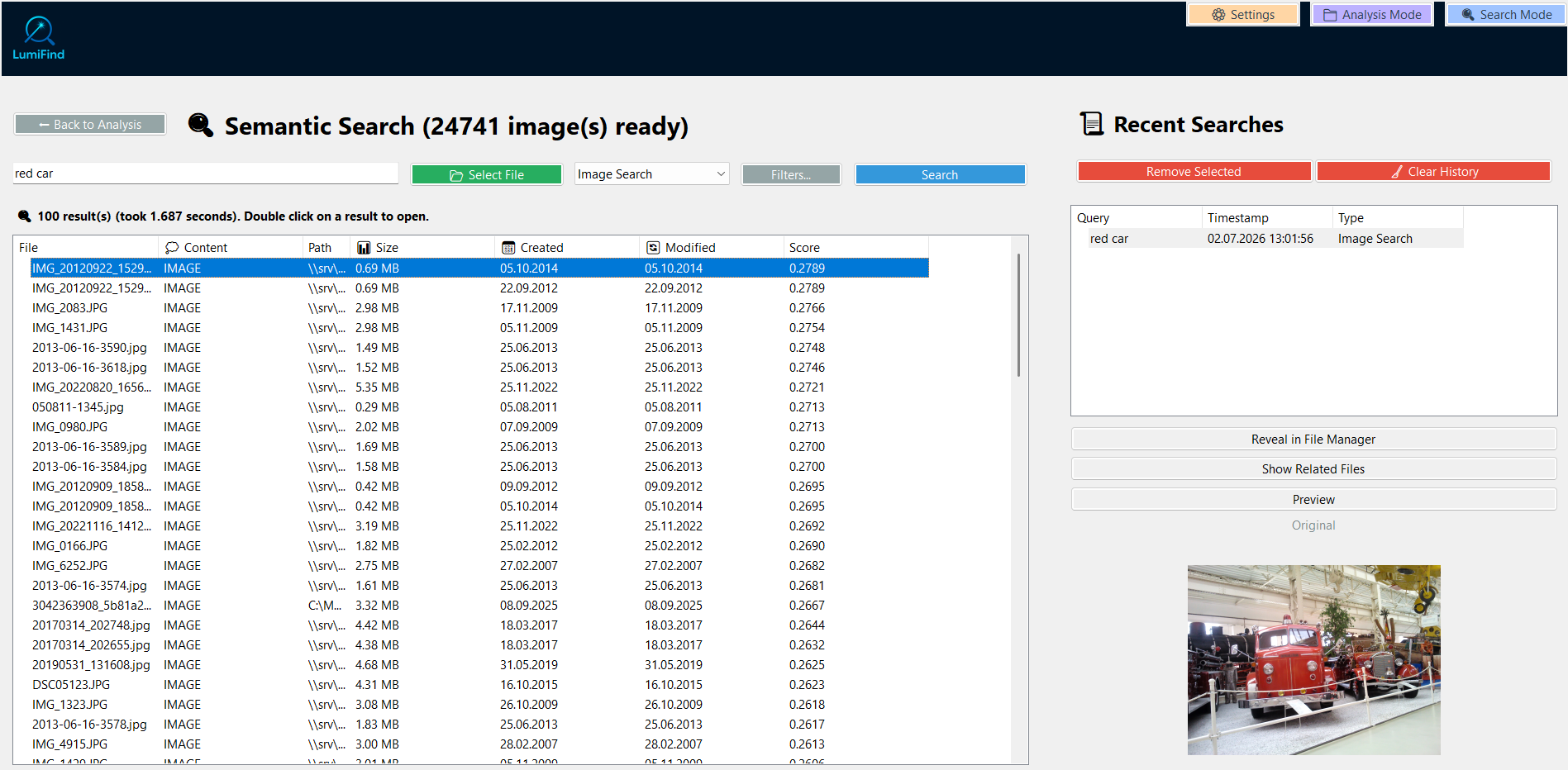](https://docs.midilli.tech/uploads/images/gallery/2026-07/semantic-search-image-1-5-0-windows.png)
Each search is saved in the **Recent Searches** area on the right. The time of the search and the type of search will also be displayed. You can double-click a search query to run it again.
For all files, you can use "Reveal in File Manager" button to locate the file in the file system using the default file browser.
Double-clicking a result will open the file with the default application associated with that file type on your system.
"Show Related Files" opens a new dialog that lists files semantically similar to the currently selected file. It uses AI-powered embedding similarity (not keyword matching) and searches across your entire index within the same media type. Results are ranked by relevance score, and you can configure the number of results directly.
[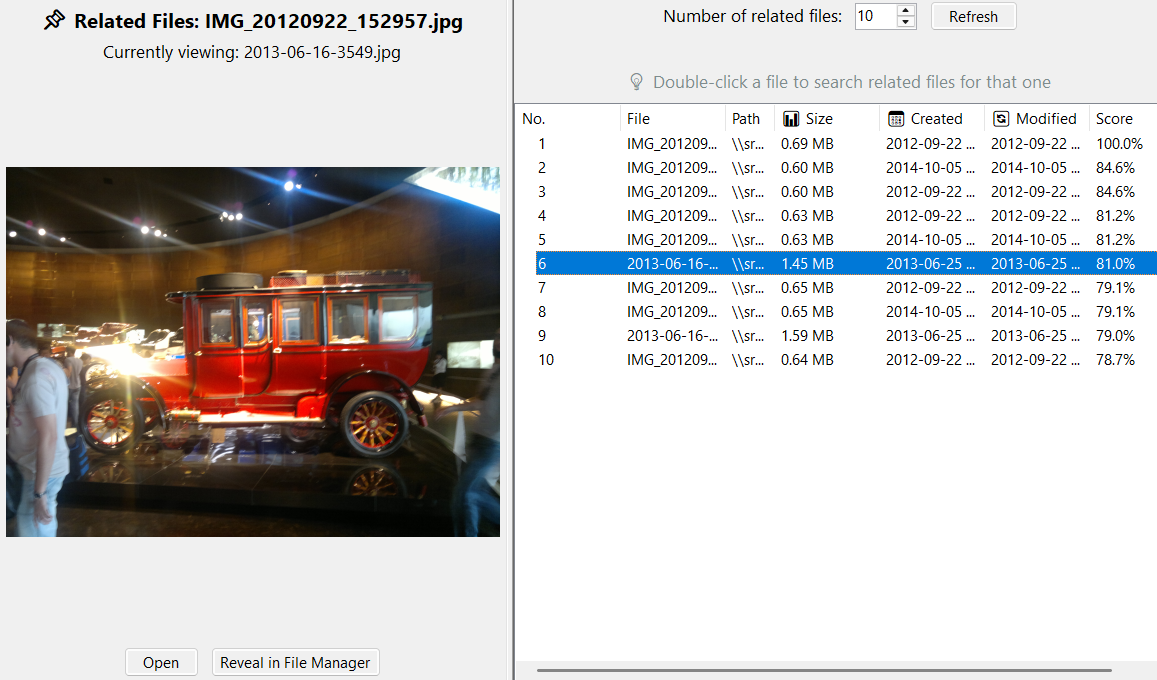](https://docs.midilli.tech/uploads/images/gallery/2026-07/image-related-files-1-5-0-windows.png)
While this dialog is open, it is also possible to view other files by single-clicking. Double-clicking will start a relevance search for the selected file.