# Download & Installation

Installing LumiFind is easy. Check the installation guide for your operating system below or select it using the navigation on the left.

Download LumiFind for your operating system here: [https://lumifind.midilli.tech/download](https://lumifind.midilli.tech/download)

If you don't have a license, get LumiFind edition you need: [https://lumifind.midilli.tech/pricing/](https://lumifind.midilli.tech/pricing/)

## Requirements

LumiFind is tested in many devices and here are the minimum system requirements to run it:

<table border="1" id="bkmrk-requirement-minimum-" style="border-collapse: collapse; width: 100%; height: 240.8px; border-width: 1px; background-color: rgb(236, 240, 241); border-color: rgb(126, 140, 141);"><colgroup><col style="width: 40.0381%;"></col><col style="width: 20.0191%;"></col><col style="width: 20.0191%;"></col><col style="width: 10.0095%;"></col><col style="width: 10.0095%;"></col></colgroup><thead><tr style="height: 29.6px;"><td style="height: 29.6px; border-color: rgb(126, 140, 141);">Requirement</td><td style="height: 29.6px; border-color: rgb(126, 140, 141);">Minimum</td><td style="height: 29.6px; border-color: rgb(126, 140, 141);">Recommended</td><td style="border-color: rgb(126, 140, 141); height: 29.6px;">Graphical</td><td style="border-color: rgb(126, 140, 141); height: 29.6px;">Console</td></tr></thead><tbody><tr style="height: 46.4px;"><td style="border-color: rgb(126, 140, 141); height: 46.4px;">Operating System</td><td style="border-color: rgb(126, 140, 141); height: 46.4px;">Windows 10, macOS 11, Linux (Ubuntu 20.04)</td><td style="border-color: rgb(126, 140, 141); height: 46.4px;">Windows 11+, macOS 13, Linux (Ubuntu 25.04)</td><td class="align-center" style="border-color: rgb(126, 140, 141); height: 46.4px;">x</td><td class="align-center" style="border-color: rgb(126, 140, 141); height: 46.4px;">x</td></tr><tr style="height: 29.6px;"><td style="height: 29.6px; border-color: rgb(126, 140, 141);">Screen resolution</td><td style="height: 29.6px; border-color: rgb(126, 140, 141);">1366x768</td><td style="height: 29.6px; border-color: rgb(126, 140, 141);">1980x1080+</td><td class="align-center" style="border-color: rgb(126, 140, 141); height: 29.6px;">x</td><td class="align-center" style="border-color: rgb(126, 140, 141); height: 29.6px;">  
</td></tr><tr style="height: 29.6px;"><td style="border-color: rgb(126, 140, 141); height: 29.6px;">Processor (CPU)</td><td style="border-color: rgb(126, 140, 141); height: 29.6px;">Dual-core</td><td style="border-color: rgb(126, 140, 141); height: 29.6px;">Quad-core+</td><td class="align-center" style="border-color: rgb(126, 140, 141); height: 29.6px;">x</td><td class="align-center" style="border-color: rgb(126, 140, 141); height: 29.6px;">x</td></tr><tr style="height: 46.4px;"><td style="height: 46.4px; border-color: rgb(126, 140, 141);">Memory (RAM)</td><td style="height: 46.4px; border-color: rgb(126, 140, 141);">4 GB</td><td style="height: 46.4px; border-color: rgb(126, 140, 141);">8+ GB (if all models enabled)</td><td class="align-center" style="border-color: rgb(126, 140, 141); height: 46.4px;">x</td><td class="align-center" style="border-color: rgb(126, 140, 141); height: 46.4px;">x</td></tr><tr style="height: 29.6px;"><td style="border-color: rgb(126, 140, 141); height: 29.6px;">Disk Space</td><td style="border-color: rgb(126, 140, 141); height: 29.6px;">2 GB + Model Size</td><td style="border-color: rgb(126, 140, 141); height: 29.6px;">4+ GB + Model Size</td><td class="align-center" style="border-color: rgb(126, 140, 141); height: 29.6px;">x</td><td class="align-center" style="border-color: rgb(126, 140, 141); height: 29.6px;">x</td></tr></tbody></table>

## Windows

Double-click `LumiFind-x.x.x.msi` to start installation and follow the instructions. First, you need to accept our [license](https://docs.midilli.tech/books/lumifind-user-guide/page/license-and-third-party-notices "License and Third-Party Notices"):

[![installation-license-1.0.0-windows.png](https://docs.midilli.tech/uploads/images/gallery/2025-12/scaled-1680-/installation-license-1-0-0-windows.png)](https://docs.midilli.tech/uploads/images/gallery/2025-12/installation-license-1-0-0-windows.png)

You can choose to install only for you (does not require administrator rights), or for all users in the computer (requires administration rights).

[![installation-scope-0.9.5-windows.png](https://docs.midilli.tech/uploads/images/gallery/2025-12/scaled-1680-/installation-scope-0-9-5-windows.png)](https://docs.midilli.tech/uploads/images/gallery/2025-12/installation-scope-0-9-5-windows.png)

Clicking "Next" will show you the default location to install based on your choice in the previous step. You can use the "Change..." button to set a different path.

[![installation-path-all-1.0.0-windows.png](https://docs.midilli.tech/uploads/images/gallery/2025-12/scaled-1680-/installation-path-all-1-0-0-windows.png)](https://docs.midilli.tech/uploads/images/gallery/2025-12/installation-path-all-1-0-0-windows.png)

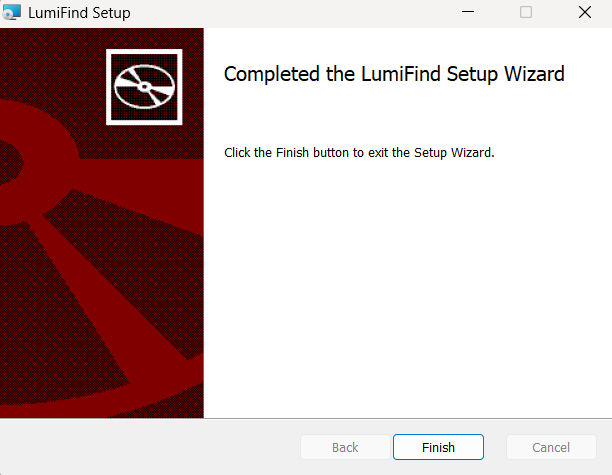
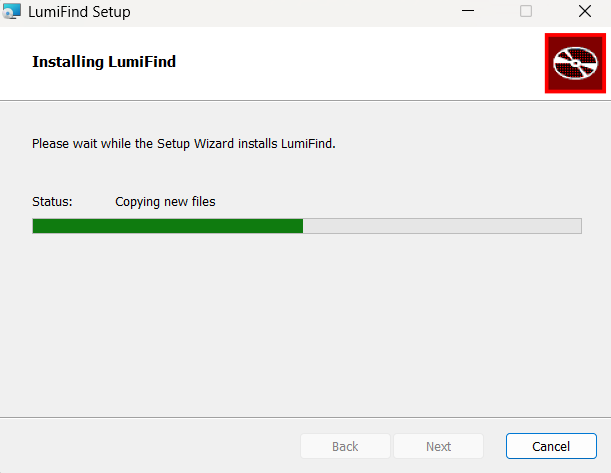
Finally, click "Next" and then "Install" to install the files and create "LumiFind" icon in the Start Menu.

<table border="1" id="bkmrk--3" style="border-collapse: collapse; width: 112.381%; height: 278px;"><colgroup><col style="width: 50.0477%;"></col><col style="width: 50.0477%;"></col></colgroup><tbody><tr><td class="align-center">[![installation-progress-0.9.5-windows.png](https://docs.midilli.tech/uploads/images/gallery/2025-12/scaled-1680-/installation-progress-0-9-5-windows.png)](https://docs.midilli.tech/uploads/images/gallery/2025-12/installation-progress-0-9-5-windows.png)</td><td class="align-center">[![installation-completed-0-9-5-windows.png](https://docs.midilli.tech/uploads/images/gallery/2025-12/scaled-1680-/590installation-completed-0-9-5-windows.png)](https://docs.midilli.tech/uploads/images/gallery/2025-12/590installation-completed-0-9-5-windows.png)</td></tr></tbody></table>

*x.x.x is the LumiFind's version number*

## macOS

Double-click the `LumiFind-x.x.x-macOS.dmg`. You will most likely get an error for the DMG being not from a verified user.

[![macos-dmg-error.png](https://docs.midilli.tech/uploads/images/gallery/2025-11/scaled-1680-/macos-dmg-error.png)](https://docs.midilli.tech/uploads/images/gallery/2025-11/macos-dmg-error.png)

In that case, you can right-click and select `Open`.

[![macos-dmg-context.png](https://docs.midilli.tech/uploads/images/gallery/2025-11/scaled-1680-/macos-dmg-context.png)](https://docs.midilli.tech/uploads/images/gallery/2025-11/macos-dmg-context.png)

This will show another false warning:[![macos-dmg-confirm.png](https://docs.midilli.tech/uploads/images/gallery/2025-11/scaled-1680-/macos-dmg-confirm.png)](https://docs.midilli.tech/uploads/images/gallery/2025-11/macos-dmg-confirm.png)

Press `Open` again and wait until the verification is complete.

\[TODO\]

*x.x.x is the LumiFind's version number*

## Linux

Currently, we provide Debian-based Linux binaries. Double click the `lf_x.x.x-1~ubuntu-questing_amd64.deb` file and enter your password. Depending on your distribution, you can follow the instructions.

If you are installing on a server, use: `sudo dpkg -i lf_x.x.x-1~ubuntu-questing_amd64.deb`.

If you have other Linux distribution and would like to install LumiFind there, let us know.

*x.x.x is the LumiFind's version number*