To learn more on default models available in LumiFind, see: [Default models included with LumiFind](https://docs.midilli.tech/books/lumifind-user-guide/page/default-models-included-with-lumifind "Default models included with LumiFind")
You can change your selected models later in [Settings](https://docs.midilli.tech/books/lumifind-user-guide/page/settings "Settings Window"), but keep in mind that files must be reanalyzed whenever a model changes. For instance, if you switch to a different Image Model, all previous image analyses must be deleted and recreated.**Tip:** Start with a small set of files to find the model that works best for you. Each model has its own strengths and limitations.
If you want to use a custom model, you can add it manually through the settings. This will be covered in the [Using custom models](https://docs.midilli.tech/books/lumifind-user-guide/page/using-custom-models "Using custom models") section in [Advanced Use](https://docs.midilli.tech/books/lumifind-user-guide/chapter/advanced-use "Advanced Use") pages. Models only need to be downloaded once. After that, they will be loaded automatically each time LumiFind starts.If you are not interested in a particular type of analysis, for example Image Search, you still need to select a model for it, but you can disable it by unchecking "Enable Image Search". When disabled, the model will not be downloaded or loaded, which helps reduce resource usage. This is especially useful for devices with limited performance.
### Step 2: Choosing File Types LumiFind supports many file types and can extract text or other information from them. However, enabling more formats will increase the analysis time. It is recommended to begin with the minimum set of file types until you become familiar with the tool and be confident with the model of your selection. You can always add or remove file types later in [Settings](https://docs.midilli.tech/books/lumifind-user-guide/page/settings "Settings"). Depending on your LumiFind Edition, some file types may be preselected automatically. You can read the descriptions and the corresponding file extensions below each option. If you want to include a file type, enable it using the "Enable" switch in the top right. If you are not interested in a particular type, or if it is not relevant to your workflow, you can disable it at any time. 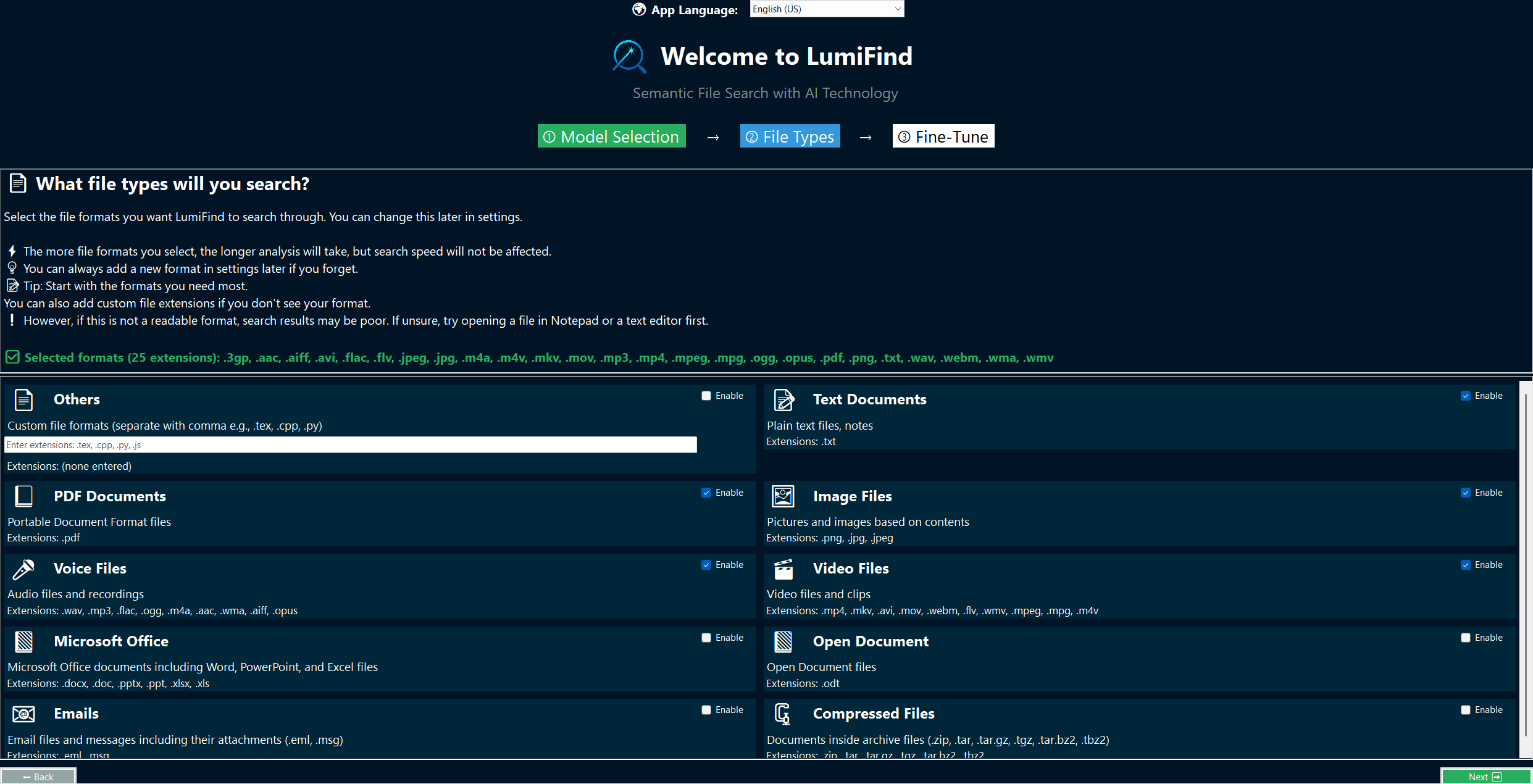 The "Others" section is a free-form field where you can enter additional file extensions that LumiFind does not list by default but can still read. For example, if you want to search through your program's source code, you can type extensions separated by commas such as `.cpp, .c, .h, .hpp`. Select "Enable" to include these formats. You can also add readable formats like Markdown (`.md, .markdown`) in the same way.**Warning:** If you add a format that is not readable as plain text, LumiFind will still attempt to extract content from it. This may take longer and produce poor results. To avoid issues, simply open the file type in a text editor first to verify that it is readable.
If you enable "Compressed Files", LumiFind will extract the archive and look for documents inside it. Since image, audio, and video compression is already very high, compressed files are only considered during document analysis. ### Step 3: Fine-Tune Settings LumiFind started as a simple idea to help users find files faster. Over time, it evolved and introduced many powerful settings to enhance the overall user experience. To keep the setup process simple while still offering flexibility, we included some of these advanced options as an optional third step. In this step, you can review the settings and adjust them if needed. Each option includes a short description explaining what it does and how it can be used. More settings will be available after setup in [Settings Window](https://docs.midilli.tech/books/lumifind-user-guide/page/settings "Settings"). [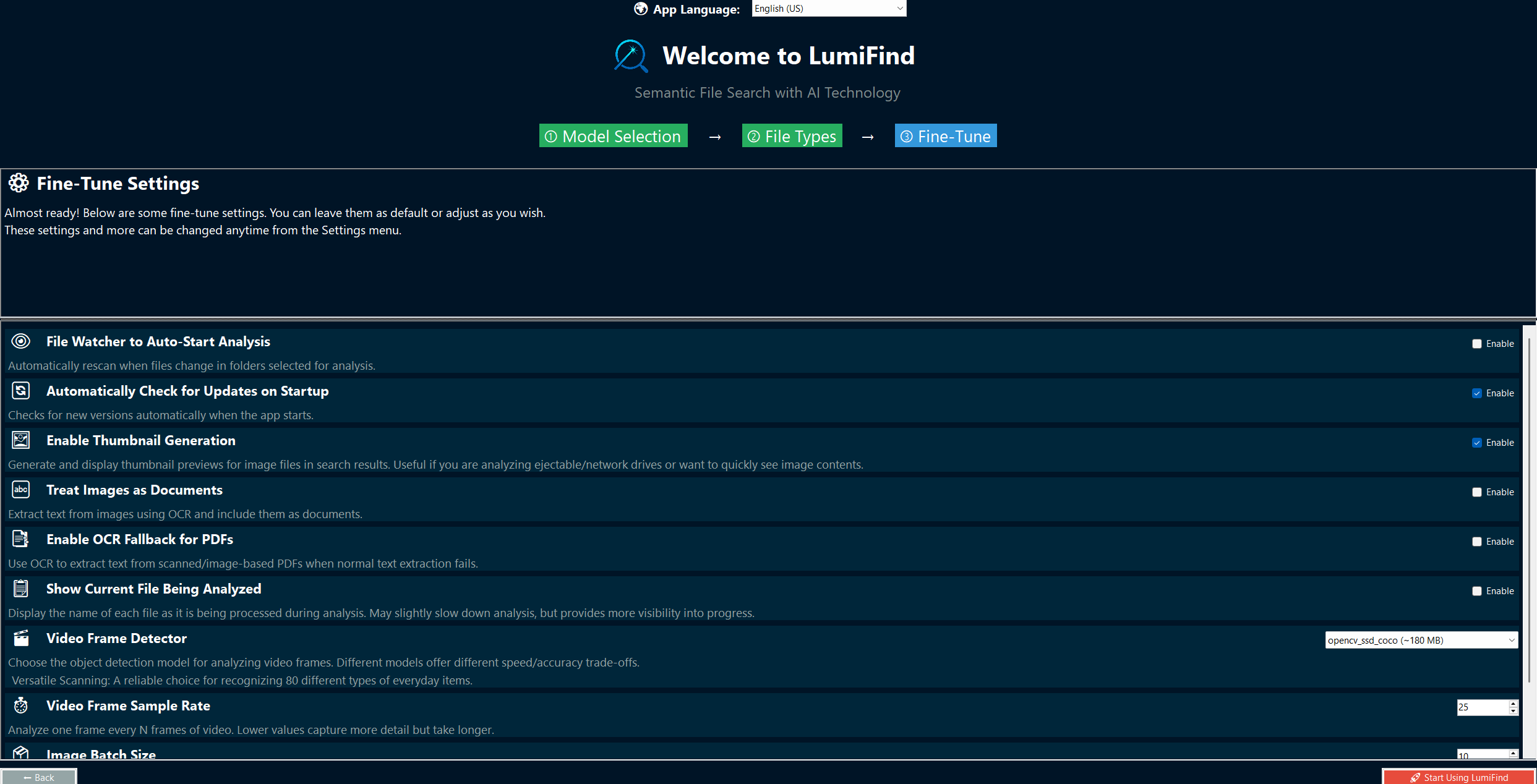](https://docs.midilli.tech/uploads/images/gallery/2026-03/welcome-screen-3-1-4-0-windows.png) Once you are satisfied with your selections, click "Start Using LumiFind". If you want to return to previous steps, use the "Back" button in the lower left. # Main Window ## Introduction The Main Window is the primary interface where you will spend most of your time. [](https://docs.midilli.tech/uploads/images/gallery/2026-01/analysis-mode-1-2-0-windows.png) It contains two sections: **Analysis Mode** and **Search Mode**. - **Analysis Mode** allows you to select the folders that LumiFind will scan and analyze. You can use `F2` on the keyboard as shortcut to switch to this mode. - **Search Mode** becomes available once you have completed at least one analysis. It enables you to search through your data quickly and intelligently. `F3` key is the shortcut to switch to this mode. ## Analysis Mode This mode scans the allowed folders and individually tracked files and creates an index of the selected file formats using the active models configured in the [Welcome Wizard](https://docs.midilli.tech/books/lumifind-user-guide/page/welcome-screen "Welcome Screen") or [Settings](https://docs.midilli.tech/books/lumifind-user-guide/page/settings "Settings"). To use the search functionality, you must complete at least one analysis with an analyzer.You can also activate this view by using *View -> Analysis Mode* or pressing `F2`.
Analysis Mode will have the following layout: [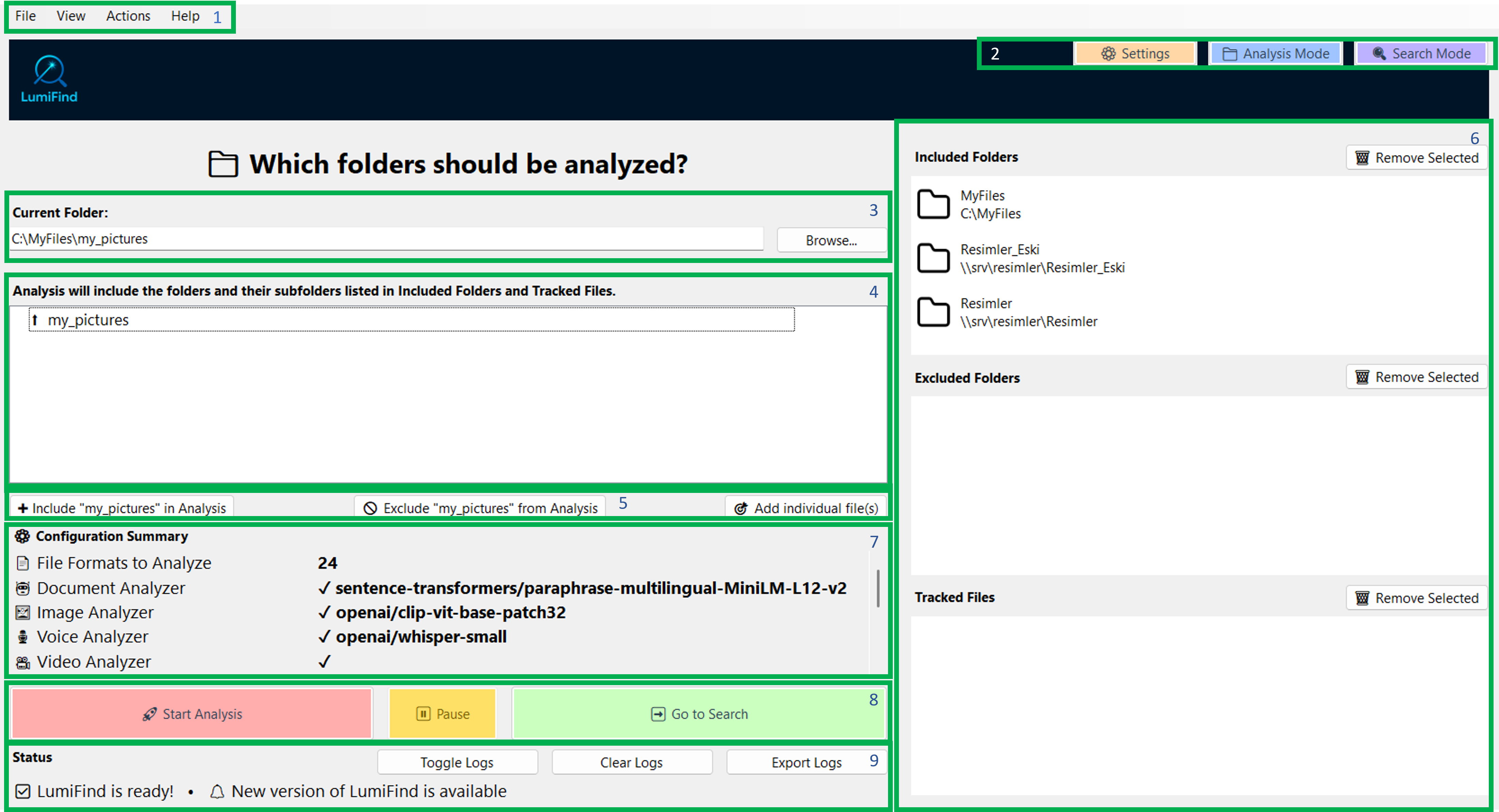](https://docs.midilli.tech/uploads/images/gallery/2026-01/analysis-mode-overlay-1-1-0-windows.png) Refer to the image above and the numbered areas. Each section is explained below. 1. *File*, *View*, and *Help* menus. - File: *Create Backup* opens a dialog to back the analysis data up as described here. *Settings* opens the [settings](https://docs.midilli.tech/books/lumifind-user-guide/page/settings "Settings Window") window and *Exit* quits the program. - View: Displays options to switch between *Analysis* and *Search* mode. - Actions: Lists quick shortcuts to switch to Search mode and focus on search field, including changing the search type. - Help: This menu lets you open the LumiFind website, access the online documentation (Shortcut: `F1`), check for software updates, and open both the [License Manager](https://docs.midilli.tech/books/lumifind-user-guide/page/license-manager "License Manager") and the About window. 2. [Settings](https://docs.midilli.tech/books/lumifind-user-guide/page/settings "Settings Window") and mode selection buttons. The Settings button becomes available once LumiFind is ready. You can also use `Ctrl + ,` on Windows/Linux and `Cmd + ,` on macOS to open it. 3. The currently viewed folder, along with a "Browse" button for quick navigation. It is also possible to paste a path and press `Enter`. 4. Subfolders within the currently viewed directory. 5. Buttons to add a folder in a list in item 6, or to remove it from that list. 6. **Included Folders:** The list of folders that LumiFind will analyze. **Excluded Folders:** Folders that LumiFind will not crawl into. **Tracked Files:** Individual files to analyze and track for changes. 7. A summary of the current settings which are going to be used when analysis starts. 8. Buttons to "Start" or "Stop" the analysis, and a button to switch to "Search" mode. 9. The **Status** panel, which shows information about ongoing actions. You can toggle log visibility with "Toggle Logs", clear them with "Clear Logs", or export to a file by pressing "Export Logs" button. You can also automatically export logs for each session if you enable [Settings](https://docs.midilli.tech/books/lumifind-user-guide/page/settings "Settings Window") -> [Analysis Settings](https://docs.midilli.tech/books/lumifind-user-guide/page/settings#bkmrk-analysis-settings) -> [Auto Save Logs to File](https://docs.midilli.tech/books/lumifind-user-guide/page/settings#bkmrk-auto-save-logs-to-fi). Depending on the models you have chosen in the [Welcome Wizard](https://docs.midilli.tech/books/lumifind-user-guide/page/welcome-screen "Welcome Screen") or in the [Settings](https://docs.midilli.tech/books/lumifind-user-guide/page/settings "Settings Window") window, and their enabled statuses, LumiFind will load them. This may take some time, but it happens only once at each startup. The "Start Analysis" button will be enabled when everything is ready, and a "LumiFind is ready!" message will appear in the Logs (8). If this is your first time starting, you will need to select some folders via (3) or (4) and include them into (6) to start analysis. Alternatively, use "Add individual file(s)" button to select one or more files to analyze and track the changes. On Windows and Linux, you can use `Ctrl + Left-click` to select multiple files at once. On macOS, use `Cmd + Left-click`. If you want to exclude a folder, browse via (3) or (4) and press "Exclude '<Folder Name Here>' from Analysis" button. During analysis, Tracked Files will have precedence, then the Excluded Folders and finally the Included Folders. This means, if you have an individually tracked file and it is inside an excluded folder, this file will be analyzed. Similarly, if you included a folder, but excluded its one of sub-folders, those sub-folders will not be crawled hence the files inside will not be analyzed.**LumiFind can only access folders and files that you allow it to see.**
You can change the current folder by selecting one in the tree view below (6) or by pressing the "Browse..." button. Once you are happy with a folder, press "Include '<Folder Name Here>' in Analysis" (5). To remove a folder, select it from a list and press "Remove Selected" above the list (5). You can also include remote folders. On Windows, they start with `\\`. In that case, the include button will indicate that it is a remote folder. On macOS and Linux, remote folders are only possible if they are mounted and accessible via Finder or a file browser (e.g., Nautilus, Dolphin). Similarly, if you want to include Cloud storage folders such as Dropbox, Google Drive, or OneDrive, simply browse to them and include them in the analysis. Once you have included all the folders or files you need, press the "Start Analysis" button and grab some coffee (or water, or anything you like). LumiFind now uses checkpoint system. Progress is saved periodically during analysis. If you stop the process using "Stop Analysis" or an unexpected interruption occurs, analysis can resume from the last checkpoint instead of starting over. If you would like to temporarily pause the analysis to resume later, you can press "Pause" button. Once you decide to continue analysis, you can use the "Resume" button. If you completed at least one analysis, then, on future launches, LumiFind will automatically switch to Search Mode to save an extra click.**Hint**: To get familiar with the tool, it is recommended to start with a small set of folders and file types. This makes it easier to switch between models until you find the one that works best for you.
## Search Mode This mode requires that you have at least one model enabled (via [Welcome Wizard](https://docs.midilli.tech/books/lumifind-user-guide/page/welcome-screen "Welcome Screen"), or [Settings](https://docs.midilli.tech/books/lumifind-user-guide/page/settings "Settings Window")) and performed at least one analysis. You can also activate this view by pressing `F3`. If you want to activate this view and directly focus on search input, press `Ctrl + E` (Windows, Linux) or `Cmd + E` (macOS). You can also use `Ctrl/Cmd + 1..5` to switch to this mode and set the search type, then focus on the search file in one key combination. [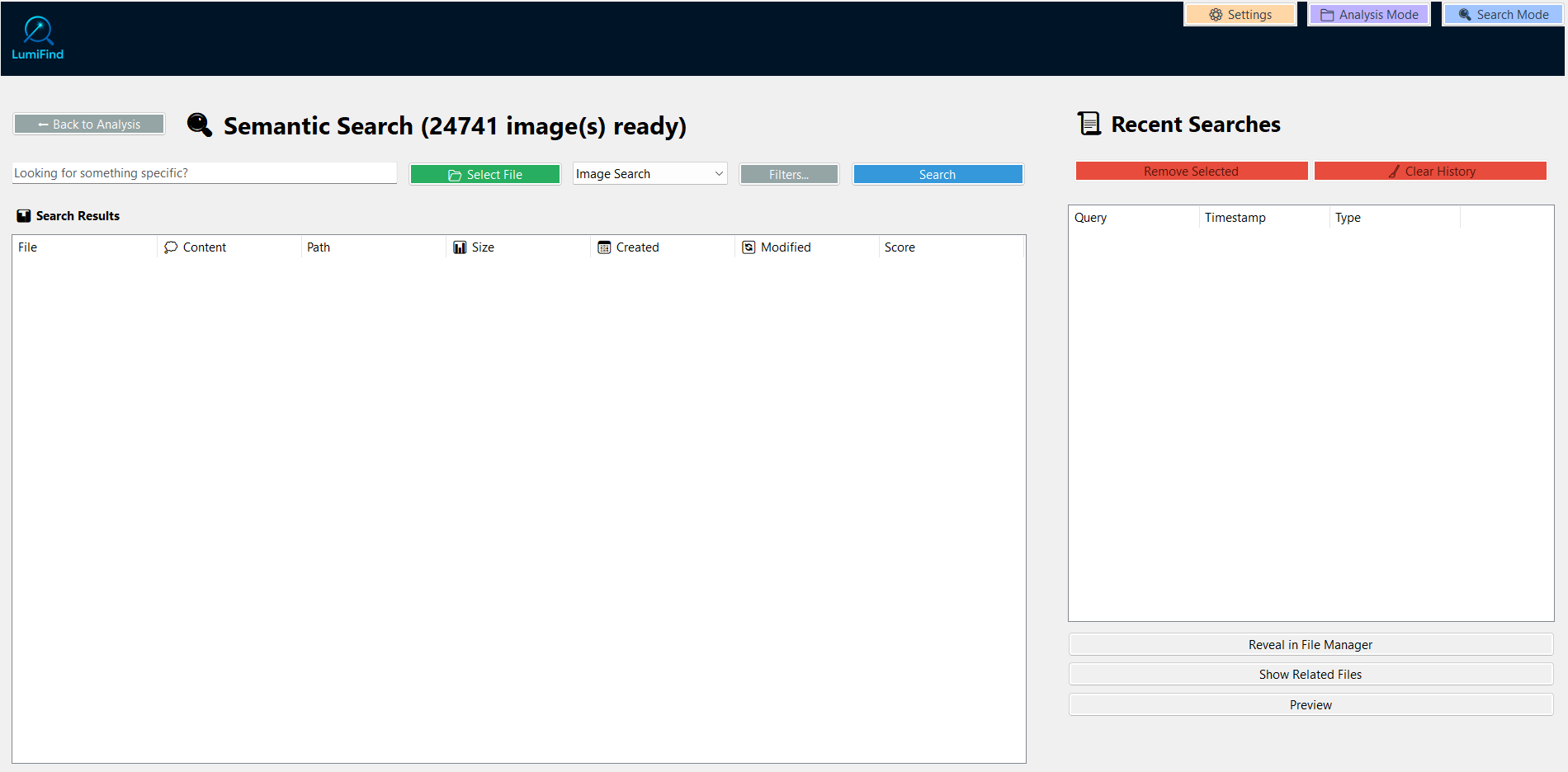](https://docs.midilli.tech/uploads/images/gallery/2026-07/semantic-search-empty-1-5-0-windows.png)**If it is the first time activation of the license, the key must exactly match the email that was used for the purchase.**
After matching information, you will be seeing the success message and the Welcome Screen will start, if it is first time running on this device. ### Offline Activation If you are in a company and behind a proxy, or if the device does not have an active internet connection, you can press "Activate Offline" button. This will create a unique device code that needs to be used for the activation using another device.  It will also be copied to your clipboard. Save it or note it down and open [https://lumifind.midilli.tech/activate](https://lumifind.midilli.tech/activate) on the other device which has an internet connection. 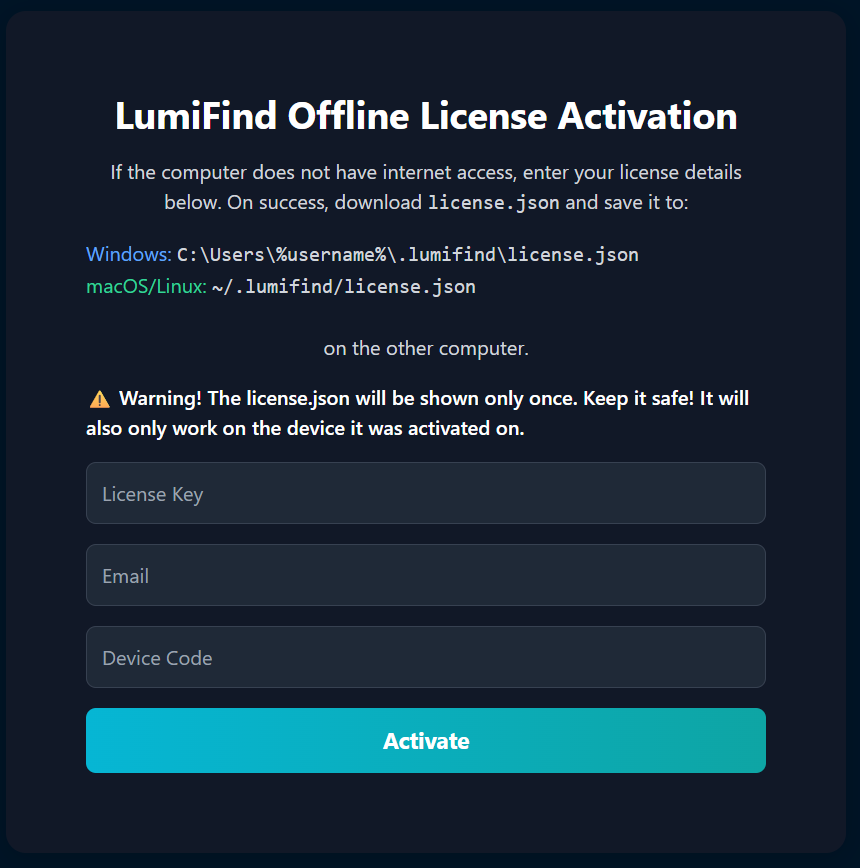 Enter the registration information in the respective fields and press "Activate". If everything is correct, you will be given a link to download your license file. 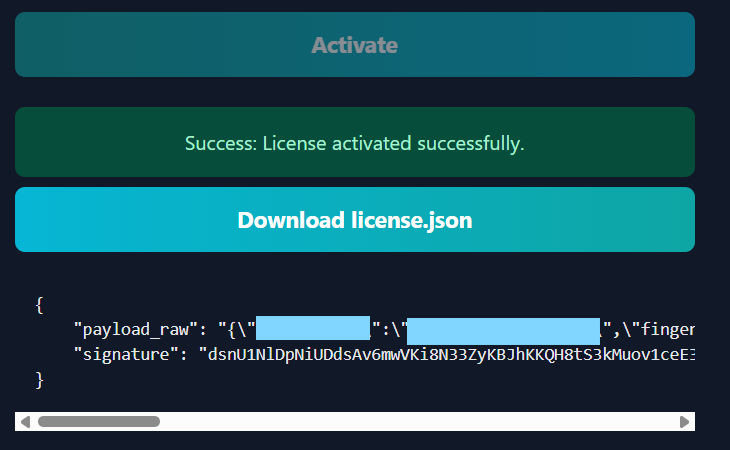 You can either download the `license.json` file and transfer it to the device where LumiFind is installed, or copy the content below and create the file manually. Then place it: on Windows: `C:\Users\%username\.lumifind\license.json`on macOS/Linux: `~/.lumifind/license.json`**Note: The file must exactly have the name `license.json` or the license will not be found.**
Then click "OK". If you closed the license window, restart LumiFind. Then, [Welcome Wizard](https://docs.midilli.tech/books/lumifind-user-guide/page/welcome-screen "Welcome Screen") should start. ## Viewing License Information The License Manager can be used to view the current license information, such as the available features and the expiration date if exists. It can be opened by using `Help -> LumiFind License Manager`. [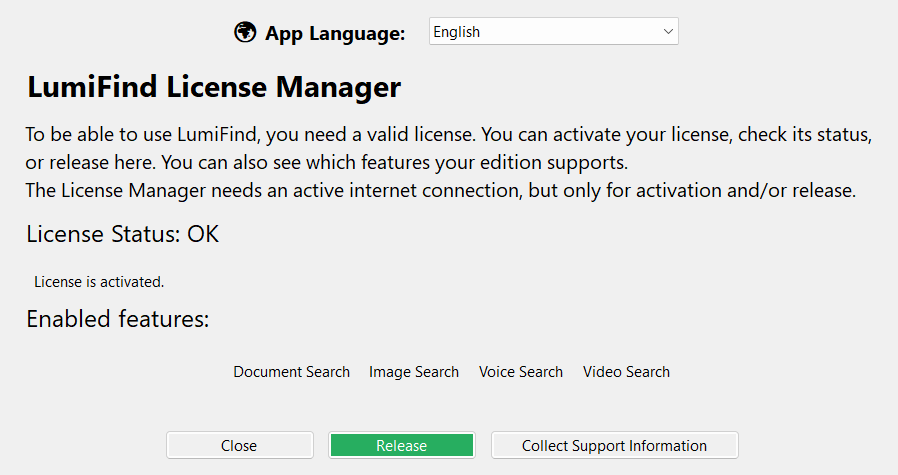](https://docs.midilli.tech/uploads/images/gallery/2025-12/license-manager-active-0-9-5-windows.png) If you have an active license, you can also release it to transfer to your other devices. When requested, or to get support, you can press "Collect Support Information" button. This will copy the required information into your clipboard to assist you. This will have no confidential information about your files, but mandatory parameters and their values. Please send this information along with the problem description to our contact email address.Looking for LumiFind Software License? Check this page: [License and Third-Party Notices](https://docs.midilli.tech/books/lumifind-user-guide/page/license-and-third-party-notices "License and Third-Party Notices")
## Releasing License If you have changed your device and want to transfer your license to another device, you can release the license. Open the License Manager by going to `Help -> LumiFind License Manager`. An active internet connection is required to release a license. It is not possible to deactivate a license offline, as LumiFind does not actively check license validity. Once a license is released, it can be registered using any email; it does not have to be the same email used during the initial activation.Deleting `license.json` does not release the license and causes an error while activating it again. Please do not delete unless instructed by the support team.
# Settings Window See [Settings](https://docs.midilli.tech/books/lumifind-user-guide/page/settings "Settings") page.