# Advanced Use
To get the most out of your new tool.
Many of these settings are targeted for advanced users, and for those who would like to fine-tune settings to maximize the accuracy and the quality of the search results. If the Settings Window is not enough, feel free to check these pages out.
# Default models included with LumiFind
### Introduction
LumiFind uses a collection of specialized AI models to analyze documents, images, voice recordings, and videos. Each model is downloaded once and then reused, and larger models generally offer better accuracy at the cost of higher memory and processing needs.
### Document Models
These models handle text understanding and semantic search. Each one is downloaded once. Larger models generally provide better accuracy but require more memory and processing power. If you are using the Pro Edition, voice and video analysis will also use the selected document model for their text processing steps.
#### all-MiniLM-L6-v2 ~90MB
Fast and lightweight. Ideal for general text search, support articles, notes and low resource systems.
#### paraphrase-multilingual-MiniLM-L12-v2 ~420MB
Better semantic accuracy across many languages. Good for mixed-language documents and everyday multilingual search.
#### distiluse-base-multilingual-cased-v2 ~540MB
Cased model that preserves capitalization. Useful for academic papers, technical documents, abbreviations and proper nouns.
#### paraphrase-multilingual-mpnet-base-v2 ~1.1GB
Highest accuracy among the defaults. Best for large knowledge bases, precise semantic matching and deep contextual search.
### Image Models
These models extract visual features from images for similarity search and cross modal search. Larger models detect finer details but need more resources. Currently, image search can only be done in English-
#### clip-vit-base-patch32 ~615MB
Balanced speed and accuracy. Suitable for most general-purpose image search tasks.
#### clip-vit-large-patch14 ~1.5GB
Higher accuracy for detailed images. Best for design libraries, product databases and visually complex datasets.
#### siglip-base-patch16-224 ~820MB
Strong performance especially on semantic similarity. Good for modern datasets and multilingual text to image matching.
### Voice Models
These models transcribe audio into text before it can be searched. Bigger models offer noticeably higher accuracy, especially for long or noisy recordings.
Video files will also use these models for their audio tracks.
#### whisper-tiny ~151MB
Very fast. Works well for clean audio, short notes and quick transcriptions on low resource systems.
#### whisper-base ~290MB
Better accuracy while staying lightweight. Good for everyday recordings, meetings and clear speech.
#### whisper-small ~967MB
Stronger performance in noisy environments. Good for interviews, lectures and field recordings.
#### whisper-medium ~3.06GB
High accuracy across multiple languages. Great for professional transcriptions and detailed audio analysis.
#### whisper-large-v2 ~6.19GB
Highest accuracy. Best for multilingual projects, long recordings, and scenarios requiring maximum transcription quality.
### Video Frame Detectors
Videos consist of multiple images (maybe you know that already) called frames. LumiFind can analyze the frames with the given intervals to extract the object(s) in that frame. To do that, it needs frame detectors.
#### opencv\_ssd ~23MB
It is a fast and small model which can detect 20 common objects and can also run on older hardware.
It can detect these objects: aeroplane, bicycle, bird, boat, bottle, bus, car, cat, chair, cow, diningtable, dog, horse, motorbike, person, pottedplant, sheep, sofa, train, tvmonitor
#### opencv\_ssd\_coco ~180MB
It is slightly bigger than opencv\_ssd, but can detect 80 different common objects.
It can detect these objects: person, bicycle, car, motorcycle, airplane, bus, train, truck, boat, traffic light, fire hydrant, stop sign, parking meter, bench, bird, cat, dog, horse, sheep, cow, elephant, bear, zebra, giraffe, backpack, umbrella, handbag, tie, suitcase, frisbee, skis, snowboard, sports ball, kite, baseball bat, baseball glove, skateboard, surfboard, tennis racket, bottle, wine glass, cup, fork, knife, spoon, bowl, banana, apple, sandwich, orange, broccoli, carrot, hot dog, pizza, donut, cake, chair, couch, potted plant, bed, dining table, toilet, tv, laptop, mouse, remote, keyboard, cell phone, microwave, oven, toaster, sink, refrigerator, book, clock, vase, scissors, teddy bear, hair drier, toothbrush
#### detr / detr\_resnet50 ~160MB
This is a model from Facebook, which is slower, but good at detecting objects. If accuracy is more important than speed.
It can detect the same objects as [opencv\_ssd\_coco](#bkmrk-opencv_ssd_coco-%7E180) offers, but with higher accuracy.
#### mediapipe\_object ~5MB
Another small model from Google, which is battery friendly and can also work on older laptops.
It can detect the same objects as [opencv\_ssd\_coco](#bkmrk-opencv_ssd_coco-%7E180) offers, but with lower accuracy.
### Your Own Models
You can add your own AI models to LumiFind to customize analysis for your specific needs. For instructions on how to do this, see [this page](https://docs.midilli.tech/books/lumifind-user-guide/page/using-custom-models "Using custom models"). Once added, these models can be selected alongside the default ones.
# Using custom models
## Introduction
Sometimes the best model for your files isn't in any predefined list. That's why we added full custom model support. You're free to plug in the exact model you want, from lightweight text encoders to large instruction-tuned transformers, and seamlessly use it inside your workflow. This gives you the freedom to experiment, optimize for speed or accuracy, and adapt your pipeline to any future model without waiting for updates.
## Steps
LumiFind has a simple requirement for any custom model you want to use:
The model must match the analysis type you assign it to. A document model should only be used for text based analysis and an image model should only be used for image workflows. Because automatic type validation is not available yet, we trust you to pick the correct model for each category.
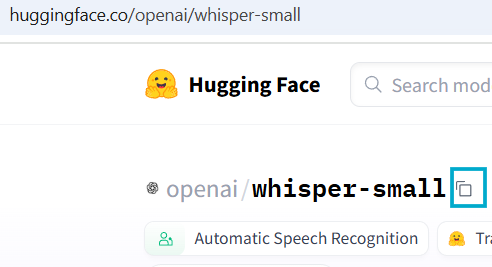
Adding your own model is straightforward. Go to the model page on [Hugging Face](https://huggingface.co/), locate the identifier in the format `organization/model-name` or `username/model-name`, and copy it. The copy icon on the page (highlighted in blue in the image below) gives you the exact string you need.
[](https://docs.midilli.tech/uploads/images/gallery/2025-11/hugging-face-custom-models.png)
You will often also find the information below what this model can be used for. This may give you a hint on which type of files you can use with this model. Below you can click to find the example models for a specific type:
- [Document Models](https://huggingface.co/models?library=sentence-transformers)
- [Image Models](https://huggingface.co/models?pipeline_tag=zero-shot-image-classification)
- [Voice Models](https://huggingface.co/models?pipeline_tag=automatic-speech-recognition)
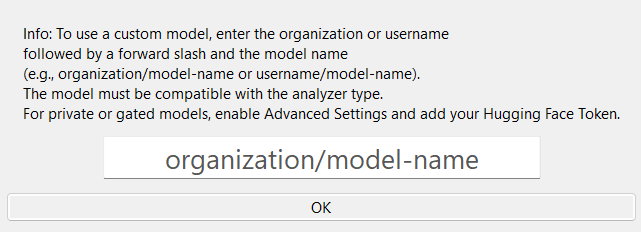
Then, open the [Settings](https://docs.midilli.tech/books/lumifind-user-guide/page/settings "Settings Window") window in LumiFind, click the "Custom" button next to the model selectors you want to replace, paste the identifier, and click "OK".
[](https://docs.midilli.tech/uploads/images/gallery/2025-11/settings-custom-model-window-0-9-0-windows.png)
The entered model will now be seen in the dropdown. Once you save your settings, it will be used in the next restart of the app.
If you enter a private repository, a [hugging face token](https://docs.midilli.tech/books/lumifind-user-guide/page/settings#bkmrk-hugging-face-token) must be entered via [Settings](https://docs.midilli.tech/books/lumifind-user-guide/page/settings "Settings") and enabling [Show Advanced Settings](https://docs.midilli.tech/books/lumifind-user-guide/page/settings#bkmrk-show-advanced-settin).
Note: Currently, we cannot estimate how big the model is. If you press "Files and versions" tab on the model page, the total size will be shown. See an example below:[](https://docs.midilli.tech/uploads/images/gallery/2025-12/lV1image.png)
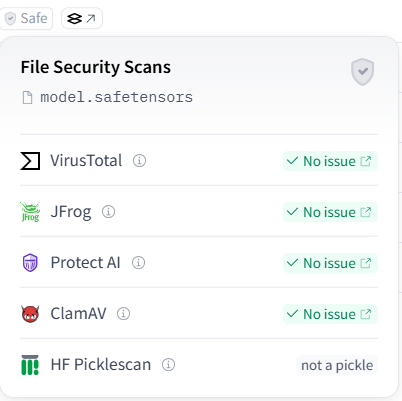
**Important:** It is recommended to load models only from organizations/developers you trust. LumiFind cannot verify whether a model contains malicious code or if it is fully safe. In the "Files and versions" tab, some models include a "Safe" label. Selecting this label will display the results of the available virus scan reports.
[](https://docs.midilli.tech/uploads/images/gallery/2025-12/Zgvimage.png)
**Warning (and a long one):** Changing a model means all data that depends on that model must be reanalyzed. For instance, switching to a custom document model will clear all document related analysis. If you have the Pro Edition, this includes voice and video entries, since they both rely on document embeddings. Likewise, setting a custom voice model resets video analysis because video also uses voice embeddings. This keeps your results consistent and ensures your new model is applied everywhere it matters.
**Another warning**: We are trying to integrate as many models as possible, but some models may not be supported. Since we cannot support all available models, please try and let us know why an unsupported model must be integrated in the next versions.
# Dealing with documents as images
LumiFind has a feature called: "Treat Images as Documents".
If this feature is enabled under [Settings](https://docs.midilli.tech/books/lumifind-user-guide/page/settings "Settings") -> [Analysis Settings](https://docs.midilli.tech/books/lumifind-user-guide/page/settings#bkmrk-analysis-settings), the images found under the "Included Folders" will be treated as documents and the text will be extracted for quick search.
For Mac and Linux users, this will work out-of-the-box. However, Windows users need to install third-party tools to achieve that.
On Windows:
1. Open a PowerShell and type: `winget install -e --id UB-Mannheim.TesseractOCR` (This tool is provided by Library of University Mannheim: [https://ub-mannheim.github.io/Tesseract\_Dokumentation/)](https://ub-mannheim.github.io/Tesseract_Dokumentation/%29)
2. Download Ghostscript and install from: [https://ghostscript.com/releases/gsdnld.html](https://ghostscript.com/releases/gsdnld.html) (Unfortunately, this needs to be done manually)
Both tools are free and open-source. You can check their requirements on their websites.
See also: [Dealing with scanned documents](https://docs.midilli.tech/books/lumifind-user-guide/page/dealing-with-scanned-documents "Dealing with scanned documents")
# Dealing with scanned documents
LumiFind has a feature called: "Enable OCR fallback for PDFs".
If this feature is enabled under [Settings](https://docs.midilli.tech/books/lumifind-user-guide/page/settings "Settings") -> [Analysis Settings](https://docs.midilli.tech/books/lumifind-user-guide/page/settings#bkmrk-analysis-settings), the PDFs found under the "Included Folders" will be further scanned with OCR tool to extract the text from them. This will significantly prolong the analysis time. Therefore, it is first recommended to start without this feature on.
For Mac and Linux users, this will work out-of-the-box. However, Windows users need to install third-party tools to achieve that.
On Windows:
1. Open a PowerShell and type: `winget install -e --id UB-Mannheim.TesseractOCR` (This tool is provided by Library of University Mannheim: [https://ub-mannheim.github.io/Tesseract\_Dokumentation/)](https://ub-mannheim.github.io/Tesseract_Dokumentation/%29)
2. Download Ghostscript and install from: [https://ghostscript.com/releases/gsdnld.html](https://ghostscript.com/releases/gsdnld.html) (Unfortunately, this needs to be done manually)
Both tools are free and open-source. You can check their requirements on their websites.
See also: [Dealing with documents as images](https://docs.midilli.tech/books/lumifind-user-guide/page/dealing-with-documents-as-images "Dealing with documents as images")
# Console mode
## Introduction
LumiFind offers a console mode for servers or remote computers such as Network Attached Storage (NAS). Most of these devices do not have a monitor, therefore, a graphical user interface (GUI) cannot be shown.
The console mode for LumiFind can work completely in the terminal. At the first startup, it asks you to register, then create the minimal settings file, then offers a set of options. The console mode is written in plain Python and can be expanded if you are comfortable with programming.
## Features
Unfortunately, not every feature in the GUI version is available for the easy use, but the core functionalities can be used. Here are the features it has so far:
- **License Management**: Activation, renewal, release, and validation of your LumiFind license.
- **Interactive Setup**: Guided creation of a minimal settings file, gated by your license features.
- **Semantic Indexing**: Analyze and index documents, images, voice, and video files (as permitted by your license).
- **Semantic Search**: Search indexed data by content, supporting multiple data types.
- **Data Management**: Clear analyzed data for any supported type.
- **Settings Management**: Create, reset, show, and validate your configuration.
- **Non-Interactive Automation**: Run indexing or search directly from the command line with flags.
- **Config Validation**: Check your settings file for completeness and correctness.
## Usage
LumiFind can be used in Linux and macOS devices in Console mode easily. On Linux installations the `lf` command is available; on macOS use the packaged application binary with the same flags. Under Windows, you need to locate the `LumiFind.exe` and run it on console using the command under Requirements.
### Requirements
- Internet access for license activation and model downloads.
- Read/write access to `~/.lumifind/` for config and database files.
To start in console mode, on Linux and macOS, run:
```
lf --console
```
on Windows, you need to open a terminal (e.g., pwsh or powershell) then go to the installation folder (e.g., `cd C:\Program Files\MIDILLI Tech\LumiFind`).
Finally run the LumiFind using the following command:
```
.\LumiFind.exe --console
```
## First Run Flow
1. **License Check**: On startup, LumiFind checks your license. If missing or invalid, you are prompted to activate with your license key and email. If the check fails, the program exits with code `1`.
2. **Settings Setup**: If no settings file exists (or you use `--setup`), LumiFind guides you through creating a minimal configuration:
- Index folder location
- File formats to analyze
- Log export preference
- Feature enablement (Documents, Images, Voice, Video) based on your license
- Model selection (with defaults, overridable). See [default supported models](https://docs.midilli.tech/books/lumifind-user-guide/page/default-models-included-with-lumifind), or how to [use your own model](https://docs.midilli.tech/books/lumifind-user-guide/page/using-custom-models).
3. **Main Menu**: After setup, LumiFind presents an interactive menu for all major operations.
```
Auto-detected system language: English
===========================================
Welcome to LumiFind Console Mode!
Website: https://lumifind.midilli.tech
Backend Version: 1.5.0
Frontend Version: 1.5.0
This software is copyrighted.
===========================================
🤖 Loading model: sentence-transformers/paraphrase-multilingual-MiniLM-L12-v2
📂 Found on device. Loading from cache.............
Model will run on: cpu
✅ Model loaded successfully!
📂 Found on device. Loading from cache...
🤖 Loading model: openai/clip-vit-base-patch32...
Model will run on: cpu
✅ Model loaded successfully!
Model will run on: cpu
🤖 Loading model: openai/whisper-small
📂 Found on device. Loading from cache...........
Model will run on: cpu
Database folder not found: ~/.lumifind/lumifind_db, will assume fresh installation
What do you want to do?
1. Analyze Documents
2. Search Documents
3. Clear Analyzed Data
4. License Manager
5. Settings (create/show)
q. Exit
Enter choice (1/2/3/4/5/q):
```
The interactive menu also includes submenus for **License Manager** (renew / release / status) and **Settings** (create/reset / show current file).
## Non-Interactive Flags
LumiFind supports automation via command-line flags. Append the flag after enabling the console mode:
```
lf --console --flaghere
```
| Flag | Description |
|---|
--setup | Run guided setup to create/reset your settings file. |
--validate-config | Validate your settings file for required sections, types, and JSON serializability. Exit code 0 = valid, 1 = problems found. |
--index | Start indexing using the actual settings immediately and exit. |
--search "<query>" --type <n> | Run a search for the given query and type, print results as a table, then exit. |
--license-manager | Open the graphical License Manager window on its own (useful for desktop automation). |
--welcome-wizard | Open the graphical Setup Wizard on its own. Cannot be combined with --license-manager (exit code 2). |
--update | Launch the built-in updater interface directly. |
### Search types
The `--type` flag accepts values `0`–`4`:
| Value | Searches |
|---|
0 | Documents (default) |
1 | Images |
2 | Voice recordings |
3 | Video audio |
4 | Video frames |
**Note:** The interactive menu prompt lists types 0–3 only, but type `4` (video frames) is fully valid when passed via `--type 4`. Example:
```
lf --console --search "sunset at the beach" --type 1
```
### Exit codes
| Code | Meaning |
|---|
0 | Operation completed successfully. |
1 | License check failed, settings file missing, invalid configuration, or search error. |
2 | Incompatible flags combined (--license-manager together with --welcome-wizard). |
Exit codes make the non-interactive flags safe to use in cron jobs, systemd timers or NAS scheduling tools — simply check whether the command returned `0`.
## Changing Settings
To get the most of the LumiFind, you can edit the settings file located under `~/.lumifind/settings.json`. Each setting is documented on the [Settings File](https://docs.midilli.tech/books/lumifind-user-guide/page/settings-file) page. After saving the changes do not forget to validate using `--validate-config`.
## Extending LumiFind
The console mode is written in Python and can be extended for automation, integration, or custom workflows.
You can add new flags, automate menu actions, or integrate with other systems.
# Using GPU instead of CPU
For Enterprise users, GPU support with fallback to CPU comes with the deployment. Home users can also enable it, but must use the console version of LumiFind.
Here are the steps:
1. Download the Advanced version packaged for your operating system (as ZIP).
2. Unzip somewhere on your computer.
3. Make sure you have Python and PIP installed ([https://pip.pypa.io/en/stable/installation/#ensurepip](https://pip.pypa.io/en/stable/installation/#ensurepip))
4. Then on that folder open a command window, navigate to that folder and run:
`pip install torch torchvision --index-url https://download.pytorch.org/whl/cu126`
Tip: On Windows, you can right click on the navigation bar of the Explorer, and press Edit Address, then type `powershell` to quickly open terminal in this folder.
5. Then run:
`pip install -r requirements.txt`
6. Finally start LumiFind with:
`python -m lf --console`
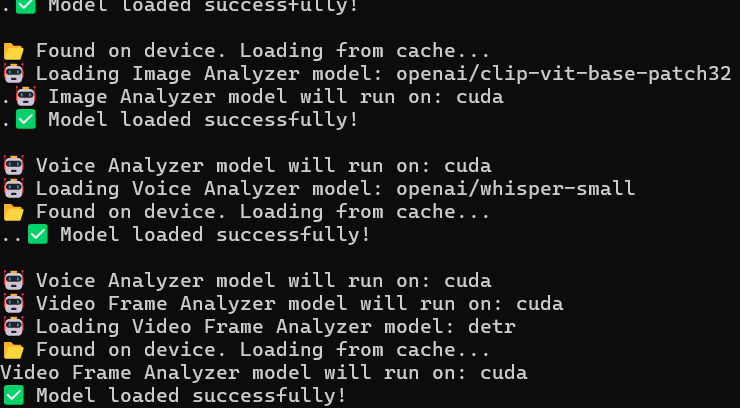
You should then see that the application will run on CUDA similar to below:
[](https://docs.midilli.tech/uploads/images/gallery/2026-07/image.png)
# Folders and Files
As a user, you might occasionally want to see where a specific file is stored. Sometimes it's simple curiosity, other times you may want to inspect logs, review saved settings, or work directly with the files for troubleshooting or development.
And since LumiFind is privacy-focused software, everything is kept transparent so you can always see what is on your computer and why it is there.
## Application Logs (system locations)
While running, LumiFind writes background logs with names following the pattern `lf.YYYYMMDD_HHMM_XXX.log`. Depending on how LumiFind was installed, these are stored at:
| Operating System | Location | Comment |
|---|
| Windows | %LocalAppData%\MIDILLI Tech\LumiFind\Logs\ | Only exists if installed **for the current user**. |
| Windows | C:\Program Files\MIDILLI Tech\LumiFind\Logs\ | Only exists if installed **for all users**. |
| macOS / Linux | ~/.lumifind/logs/ | Auto-saved session logs appear here when enabled (see below). |
## The .lumifind Folder
| Operating System | Path |
|---|
| Windows | C:\Users\%username%\.lumifind |
| macOS / Linux | ~/.lumifind |
This is the default folder for settings, license files, analysis metadata and analysis contents.
**Tip:** [Settings](https://docs.midilli.tech/books/lumifind-user-guide/page/settings) → **Open Settings Folder** opens this directory directly.
### Files and folders inside .lumifind
| File / Folder | Purpose | Comment |
|---|
settings.json | Contains user settings for LumiFind. | Can be edited manually, but with care! See [Settings File](https://docs.midilli.tech/books/lumifind-user-guide/page/settings-file). |
license.json | Contains device- and user-bound license information. | If deleted or tampered with, the license cannot be activated again. Licenses must be released only using the [License Manager](https://docs.midilli.tech/books/lumifind-user-guide/page/license-manager). |
search_history.json | Lists the last performed search queries. | If you are using [console mode](https://docs.midilli.tech/books/lumifind-user-guide/page/console-mode), history will not be kept. |
lumifind_db.sqlite3 | Database keeping track of analyzed files and their metadata. Usually small in size. | Default location may vary between installation types (directly under .lumifind, or inside the index folder). Its path can be changed via the db_file setting in settings.json. |
lumifind_db/ | Folder holding the actual analysis data for documents, images, voice and videos. May grow as the number of analyzed files increases. | Location can be changed via the index_folder setting in settings.json. |
thumbnails/ | Smaller versions of the analyzed images, used both for detecting changes and displaying them in the interface. Follows the same folder structure as the indexed content. | Can be relocated via the thumbnail_folder setting. |
models/ | Cached copies of downloaded AI models (embedding, transcription and detection models). | Can be relocated via the models_folder setting. |
<model_name>.pt | Object detection model weights downloaded on demand for frame analysis. | Stored at the root of .lumifind; safe to delete, they will be re-downloaded when needed. |
manifest.json | Cached update information used by the built-in updater. | Refreshed automatically when checking for updates. |
logs/ | Folder storing important information and error logs in the event of a problem. | If you enable [Settings](https://docs.midilli.tech/books/lumifind-user-guide/page/settings) → **Auto Save Logs**, session logs also appear here after each run. |
## Inside the Index Folder (lumifind\_db)
Besides your analysis data, LumiFind keeps small marker files here:
| File | Purpose |
|---|
.lumifind_indexing.lock | Temporary marker while an indexing operation is running, preventing concurrent index writes. |
.lumifind_readonly | Marker indicating the index is currently read-only (e.g. during maintenance or after an interrupted operation). |
**Note:** Do not delete marker or database files manually while LumiFind is running. If an indexing operation was interrupted unexpectedly, remove the lock markers only after making sure no LumiFind process is active.
## Model files from Hugging Face
| OS | Folder | Purpose |
|---|
| Windows | C:\Users\%username%\.cache\huggingface | Model files downloaded from Hugging Face. |
| Linux/macOS | ~/.cache/huggingface | Model files downloaded from Hugging Face. |
# Settings File
LumiFind stores every user preference in a single JSON file: `settings.json`. This page documents every key LumiFind reads, its type, default value and purpose. So, you can safely review, back up or hand-tune your configuration (for example on headless servers running [Console mode](https://docs.midilli.tech/books/lumifind-user-guide/page/console-mode)).
## File Location
| Operating System | Path |
|---|
| Windows | %UserProfile%\.lumifind\settings.json |
| macOS / Linux | ~/.lumifind/settings.json |
The fastest way to open the folder is **Settings** → **Open Settings Folder**. For a full overview of the directory see [Folders and Files](https://docs.midilli.tech/books/lumifind-user-guide/page/folders-and-files).
**Edit with care!** Invalid values can prevent indexing or searching from working. Before editing: close LumiFind, keep a backup copy of the file, and run a validation afterwards (see [Validating the file](#bkmrk-validating-the-file)). Keys marked as *managed* are written automatically by the app and should not be edited by hand.
## Structure Overview
```json
{
"generic": { ... },
"model_info": { ... },
"indexing_settings": { ... },
"search_settings": { ... },
"visual_settings": { ... }
}
```
All five top-level sections are **required**; the validator complains if any of them is missing. A few extra keys (`last_folder`, `last_updated`) are added automatically by the app.
## Section: generic
| Key | Type | Default | Description |
|---|
language | string | "en" | Interface language code. |
auto_detect | boolean | true | Detect and use the operating system language on first run. |
fallback_language | string | "en" | Fallback language for missing translations. |
auto_check_updates | boolean | true | Check for updates when the application starts. |
advanced_mode | boolean | false | Show advanced options in the Settings window. |
backup_include_thumbnails | boolean | true | Include thumbnails when creating settings backups. |
last_backup_date | string | "" | *Managed.* Timestamp of the last backup. |
## Section: model\_info
| Key | Type | Default | Description |
|---|
doc_model_enabled | boolean | true | Enable the document embedding model. |
doc_model_name | string | sentence-transformers/paraphrase-multilingual-MiniLM-L12-v2 | Hugging Face model used for document embeddings. See [default models](https://docs.midilli.tech/books/lumifind-user-guide/page/default-models-included-with-lumifind) and [custom models](https://docs.midilli.tech/books/lumifind-user-guide/page/using-custom-models). |
image_model_enabled | boolean | false | Enable image search. |
image_model_name | string | openai/clip-vit-base-patch32 | Hugging Face model used for image embeddings. |
voice_model_enabled | boolean | false | Enable voice transcription and search. |
voice_model_name | string | openai/whisper-tiny | Hugging Face Whisper model used for transcription. |
video_model_enabled | boolean | false | Enable video search (audio track analysis). |
frame_model_enabled | boolean | false | Enable frame detection (object detection inside videos/images). |
frame_detector_type | string | opencv_ssd_coco | Object detector. Supported values include opencv_ssd_coco, detr, yolov8n, yolov8s. |
frame_model_size | number \| null | null | Optional override of the estimated download size shown in the interface. |
whisper_language_code | string | "" | Force transcription language (e.g. "en", "tr"). Empty = auto-detect. |
hugging_face_token | string | "" | Access token for gated or private Hugging Face models. |
Feature switches are gated by your license. If a feature is not part of your license, enabling its switch has no effect.
## Section: indexing\_settings
### Paths and files
| Key | Type | Default | Description |
|---|
index_folder | path | ~/.lumifind/lumifind_db | Root folder holding all analysis data. |
db_file | path | ~/.lumifind/lumifind_db.sqlite3 | SQLite database file tracking analyzed files. The GUI Setup Wizard may place it inside the index folder instead. |
thumbnail_folder | path | ~/.lumifind/thumbnails | Folder for thumbnail images. |
models_folder | path | ~/.lumifind/models | Folder where downloaded models are cached. |
image_cache_folder | path | = index folder | Optional separate location for the image embedding cache. |
file_formats | list of strings | (see example) | File extensions to analyze, e.g. ".pdf", ".jpg". |
### Analysis parameters
| Key | Type | Default | Description |
|---|
doc_batch_size | integer | 1000 | Documents processed per batch. |
image_batch_size | integer | 5 | Images processed per batch (GUI wizard uses 10). |
chunk_size | integer | 500 | Text chunk size in characters. |
chunk_overlap | integer | 50 | Overlap between consecutive text chunks. |
voice_chunk_duration | integer | 30 | Audio chunk length in seconds. |
frame_sample_rate | integer | 5 | Analyze one frame every N seconds. Must be a positive integer (GUI wizard uses 25). |
frame_sampling_enabled | boolean | true | Enable frame sampling during video indexing. |
object_confidence_threshold | number (0–1) | 0.5 | Minimum confidence for detected objects (GUI wizard uses 0.25). |
### Feature toggles
| Key | Type | Default | Description |
|---|
process_email_attachments | boolean | true | Index attachments found in email files. |
pdf_ocr_fallback | boolean | false | Use OCR when a PDF contains no extractable text. See [Dealing with scanned documents](https://docs.midilli.tech/books/lumifind-user-guide/page/dealing-with-scanned-documents). |
treat_images_as_documents | boolean | false | OCR images and index them as documents. See [Dealing with documents as images](https://docs.midilli.tech/books/lumifind-user-guide/page/dealing-with-documents-as-images). |
enable_exif_geocoding | boolean | true | Reverse-geocode GPS coordinates from EXIF metadata. |
enable_thumbnails | boolean | true | Generate thumbnails for analyzed images. |
auto_export_logs | boolean | false | Save session logs to the logs folder after each run. |
show_file_info | boolean | false | Show detailed file information in results. |
### Maintenance and file watching
| Key | Type | Default | Description |
|---|
file_watching_enabled | boolean | false | Watch folders for changes and update the index automatically. |
file_watching_interval | integer | 60 | Polling interval in seconds. |
checkpoint_interval | integer | 0 | Save an indexing checkpoint every N files; 0 disables checkpoints. |
oldest_file_date | date string | "1970-01-01" | Skip files created before this date while indexing. |
**Managed keys — do not edit:** `indexed_folders`, `excluded_folders`, `tracked_files` (lists maintained by the app) and `previous_doc_model` (used internally during model changes).
## Section: search\_settings
| Key | Type | Default | Description |
|---|
max_results | integer | 100 | Maximum number of results returned per search. |
max_results_per_file | integer | 1 | Maximum matches returned per file. |
min_score | number | 0 | Discard results below this similarity score. |
use_metadata_mode | integer | 0 | How image search balances metadata against visual content: 0 = balanced (default), 1 = prioritize metadata filters, 2 = prioritize visual matching. |
image_top_k | integer | 5 | Number of candidate images considered per query stage. |
metadata_boost_weight | number | 0.3 | Weight given to metadata matches when ranking. |
min_file_size_mb | number | 0.0 | Ignore files smaller than this size. |
max_file_size_mb | number | 100.0 | Ignore files larger than this size (GUI wizard uses 250). |
oldest_file_date | date string | "1970-01-01" | Exclude files created before this date from results. |
file_formats | list of strings | (mirror of indexing) | Restrict searches to these extensions. |
## Section: visual\_settings
| Key | Type | Default | Description |
|---|
log_level | string | "INFO" | Logging verbosity (e.g. DEBUG, INFO, WARNING). |
date_format | string | "YYYY-MM-DD" | Date display format (GUI wizard uses DD.MM.YYYY). |
time_format | string | "HH:mm:ss" | Time display format. |
file_size_unit | string | "MB" | Preferred unit for file sizes. |
show_thumbnails | boolean | true | Show thumbnails in result lists. |
show_original_images | boolean | false | Show original images instead of thumbnails where possible. |
add_timestamps | boolean | true | Display timestamps next to entries. |
## Example: minimal settings.json
This is what Console mode's guided setup produces:
```json
{
"generic": {
"language": "en"
},
"model_info": {
"hugging_face_token": "",
"doc_model_enabled": true,
"doc_model_name": "sentence-transformers/paraphrase-multilingual-MiniLM-L12-v2",
"image_model_enabled": false,
"image_model_name": "openai/clip-vit-base-patch32",
"voice_model_enabled": false,
"video_model_enabled": false,
"frame_model_enabled": false,
"frame_detector_type": "opencv_ssd_coco",
"frame_model_size": null
},
"indexing_settings": {
"index_folder": "~/.lumifind/lumifind_db",
"db_file": "~/.lumifind/lumifind_db.sqlite3",
"thumbnail_folder": "~/.lumifind/thumbnails",
"models_folder": "~/.lumifind/models",
"file_formats": [".txt", ".md", ".pdf", ".docx"],
"doc_batch_size": 1000,
"image_batch_size": 5,
"chunk_size": 500,
"chunk_overlap": 50,
"pdf_ocr_fallback": false,
"treat_images_as_documents": false,
"auto_export_logs": false,
"show_file_info": false,
"enable_exif_geocoding": true,
"frame_sample_rate": 5,
"object_confidence_threshold": 0.5
},
"search_settings": {
"max_results": 100,
"max_results_per_file": 1,
"min_score": 0,
"use_metadata_mode": 0,
"file_formats": [".txt", ".md", ".pdf", ".docx"],
"min_file_size_mb": 0.0,
"max_file_size_mb": 100.0
},
"visual_settings": {
"log_level": "INFO",
"date_format": "YYYY-MM-DD",
"file_size_unit": "MB"
}
}
```
**Note:** Paths may be written either absolute or starting with `~/`; LumiFind expands both. The GUI Setup Wizard creates the same structure but may pick different initial values for a few keys (batch sizes, sampling rate and date format).
## Validating the file
After editing, always validate:
```
lf --console --validate-config
```
The check reports:
- All five required sections exist.
- `generic.language` is a string; `index_folder`, `db_file` are string paths; `file_formats` is a list.
- `frame_detector_type` is a string and `frame_model_enabled` is a boolean (when present).
- `frame_sample_rate` is a positive integer.
- `object_confidence_threshold` is a number between 0 and 1.
- The whole file is valid JSON and fully serializable.
Exit code `0` means valid, `1` means problems were found (details printed to the console).
## Resetting to defaults
- **Console mode:** run `lf --console --setup`, or choose menu option **Settings (create/show)** → **Create/Reset**.
- **GUI:** re-run the Setup Wizard via `--welcome-wizard` or reinstall/reset from Settings.